

Queries
Ask questions across your conversations to find answers and spot trends.
Find answers in your conversations
A query asks a question of every conversation in the lead lists you choose. ManPack AI reads each call and tells you which ones match, with a reason for each. Use queries to answer questions like “How often do we reach the decision maker?” or to spot trends such as how many leads mention a competitor.
Ask in plain English
Describe what you are looking for, just as you would to a colleague.
See the trend
Get the number of matches and the match rate across all your calls.
Check every call
See which conversations matched, why, and open any of them.
Creating a query
In this example we create a query called Decision Maker Reached to find conversations where the agent got through to the decision maker.
Step 1: Open Queries
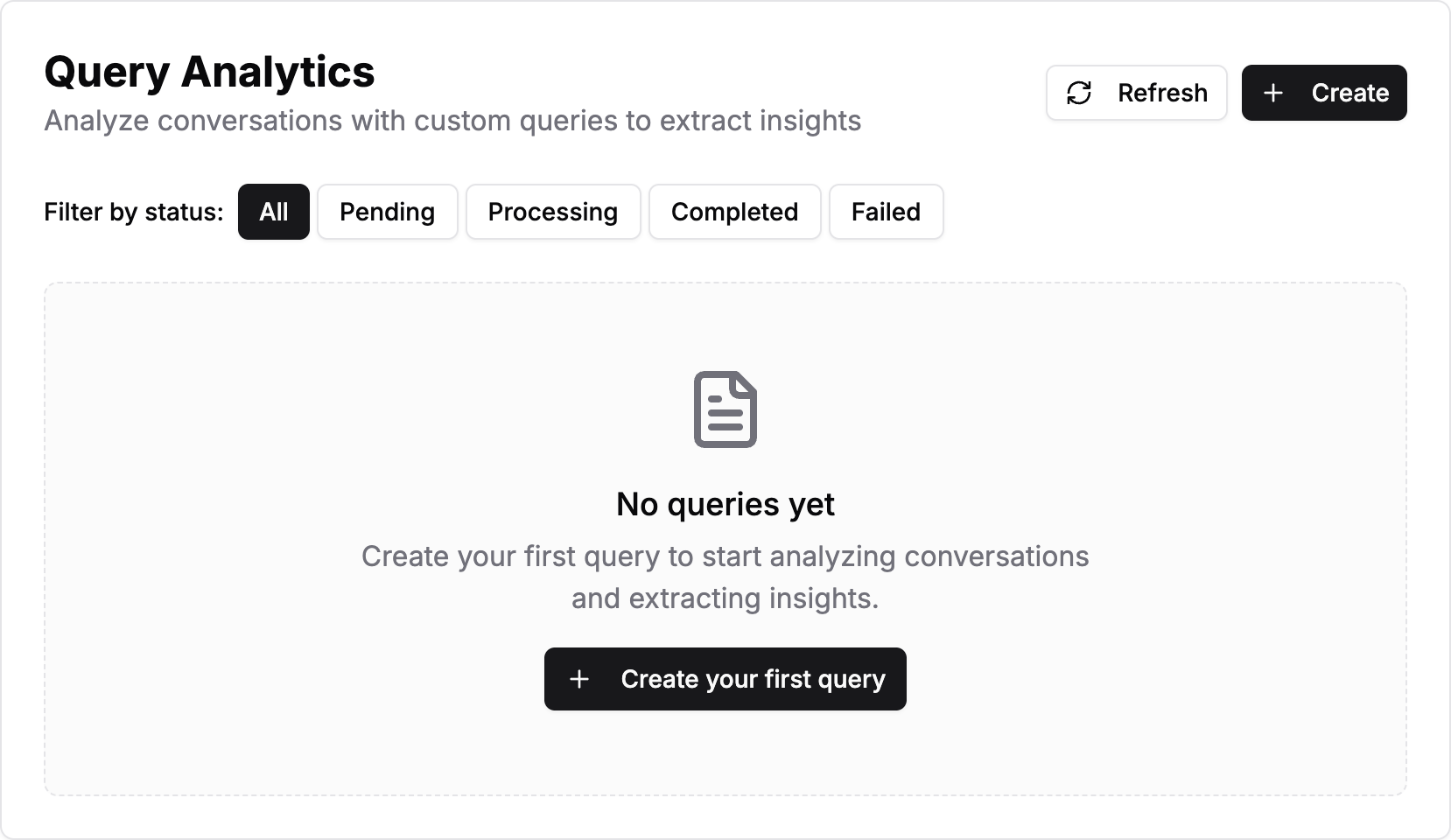
Select Queries in the left menu. The Query Analytics page lists every query you’ve created. Use the Filter by status buttons to show queries that are Pending, Processing, Completed or Failed.
Select Create (or Create your first query if you don’t have one yet).
Step 2: Fill in the query
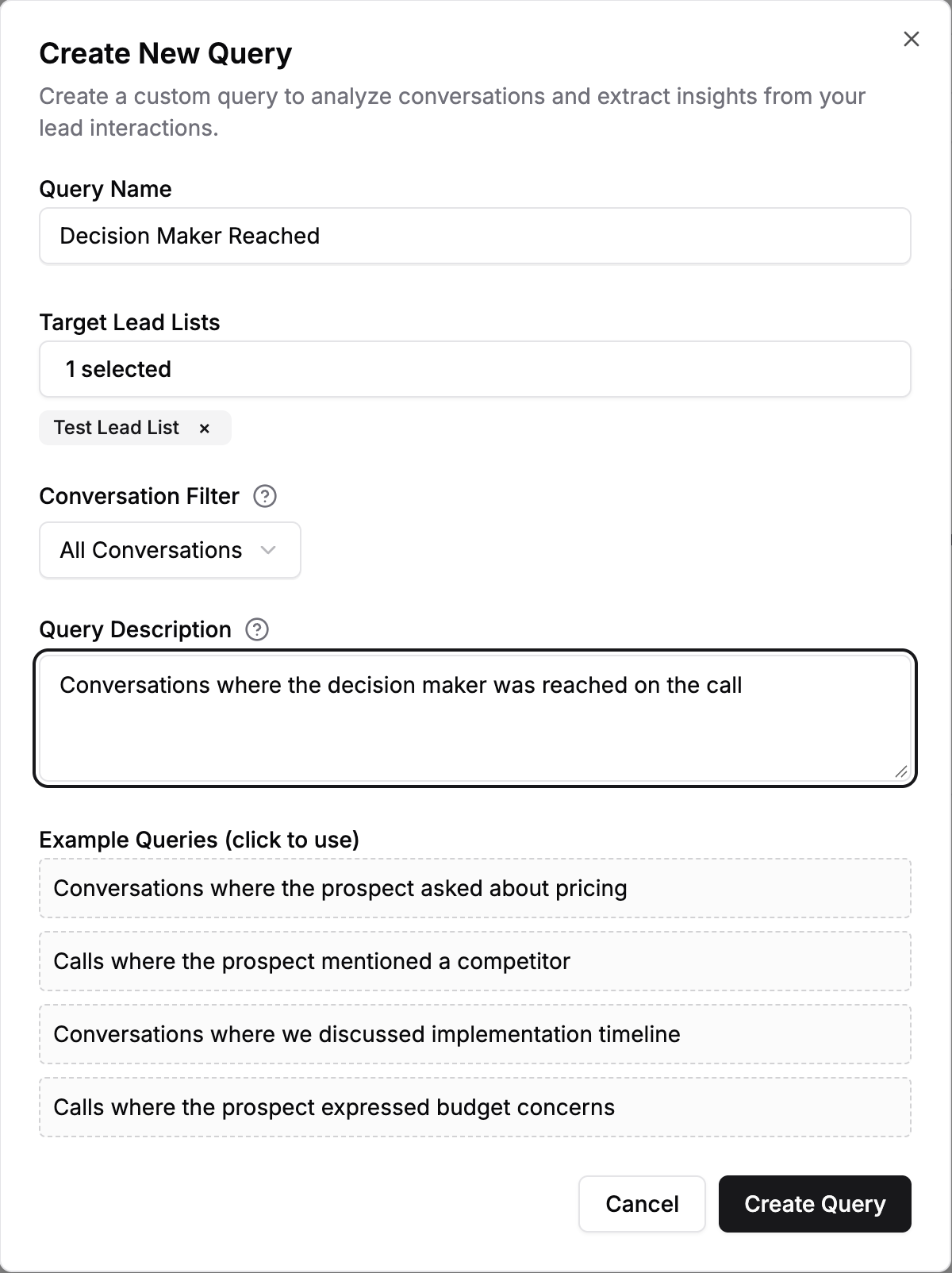
In the Create New Query window:
- Query Name: a short name so you can find it later, for example Decision Maker Reached.
- Target Lead Lists: select one or more lead lists. Only conversations with leads in these lists are checked.
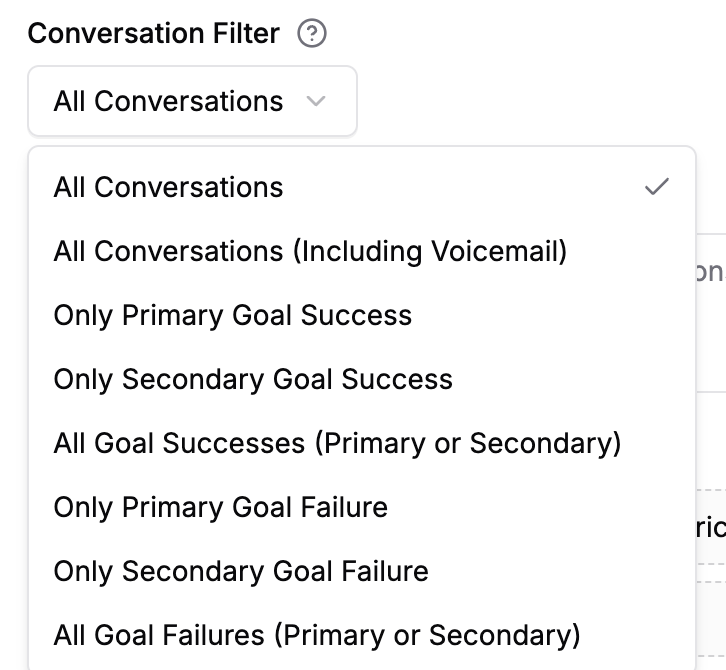
- Conversation Filter: choose which calls to include based on how they went. All Conversations leaves out voicemails; pick All Conversations (Including Voicemail) to include them. The other options limit the query to calls where the primary or secondary goal succeeded or failed.
- Query Description: describe what you want to find, for example Conversations where the decision maker was reached on the call. Be specific about the topic, question or behaviour you’re looking for. You can also select one of the Example Queries to use it.
Select Create Query.
Step 3: Wait for it to finish
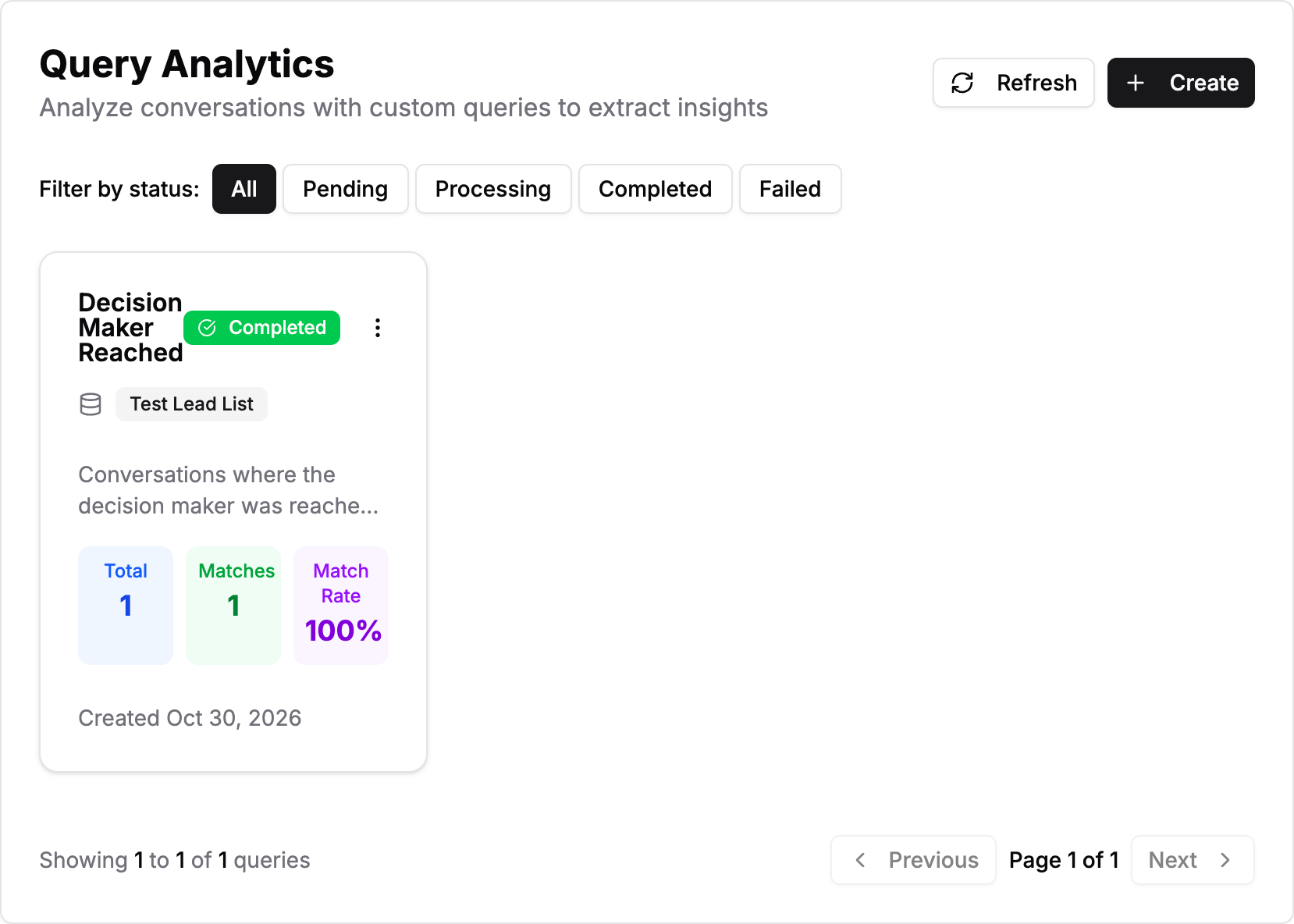
Your query appears as a card marked Pending, then Processing while ManPack AI reads the conversations. Select Refresh to update it. Once it shows Completed, the card shows the totals at a glance.
Select the card, or the ⋮ menu and View Results, to open the results. The same menu has Delete to remove a query you no longer need.
Tip: A query on a small list usually finishes within a minute. Larger lists take longer.
Reading the results
The results page shows how many conversations matched and explains the decision for each one.
Read the summary
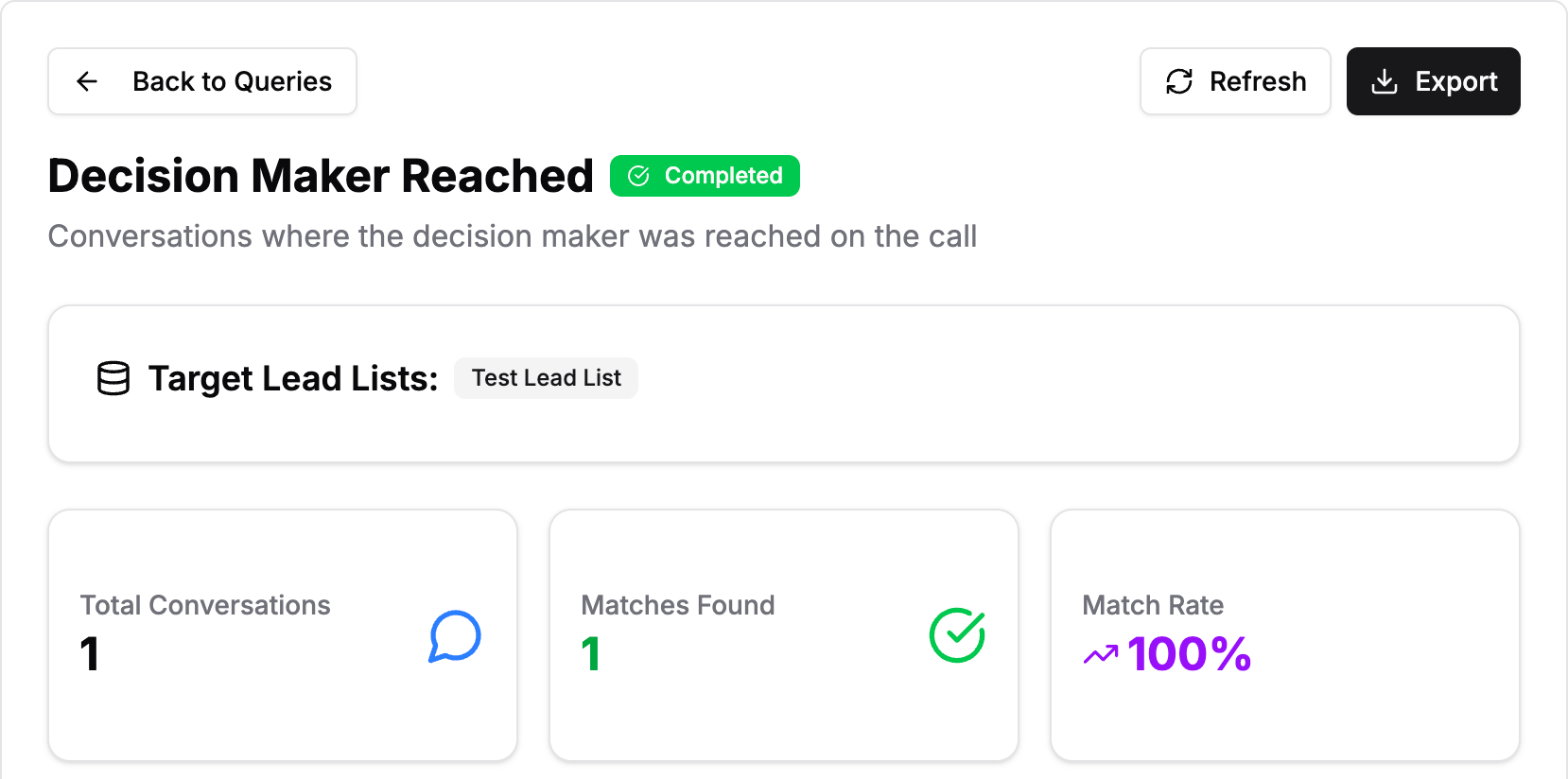
At the top you’ll see the query name, its description and the Target Lead Lists it checked. Three cards sum up the results:
- Total Conversations: how many conversations were checked.
- Matches Found: how many matched your description.
- Match Rate: the share of conversations that matched. In this example, a high match rate means the agent is reaching the decision maker on most calls.
Check each conversation
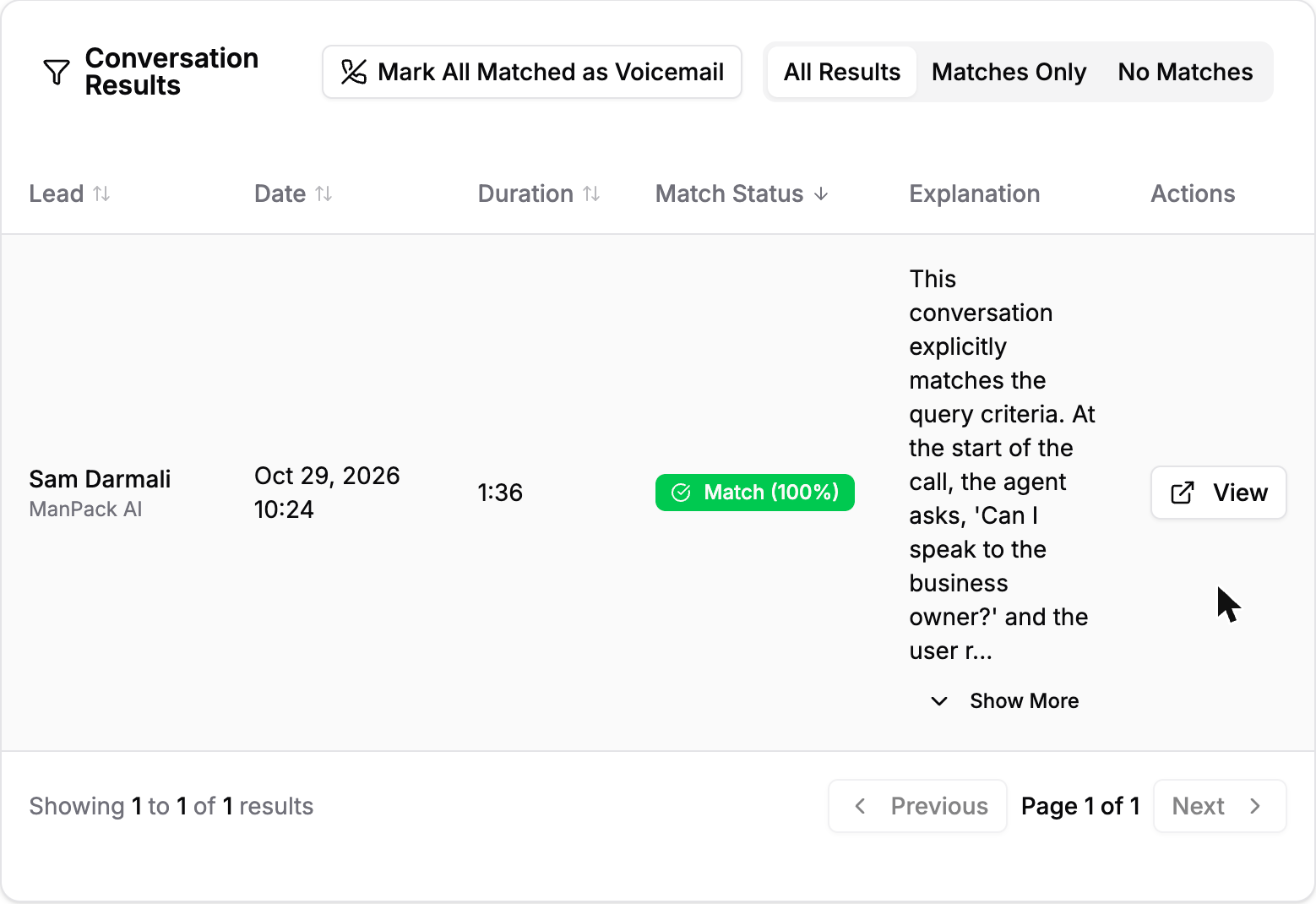
Conversation Results lists every conversation that was checked. Use All Results, Matches Only or No Matches to filter the list, and the arrows in the headers to sort it.
- Lead: the lead’s name and company.
- Date and Duration: when the call happened and how long it lasted.
- Match Status: Match or No Match, with how confident the AI is as a percentage.
- Explanation: why the AI decided this, often quoting the conversation. Select Show More to read it in full.
- Actions: select View to open the lead’s call activity in a new tab, where you can listen to the recording and read the transcript.
Export and next steps
Select Export to download the results so you can share them or analyse them in a spreadsheet. Select Back to Queries to return to your list.
If your query was designed to find voicemails (for example, “Calls that reached a voicemail”), select Mark All Matched as Voicemail to mark every matching call as a voicemail in one go.
Tip: Use what you learn to improve your agent. For example, if the decision maker is rarely reached, add gatekeeper steps to the prompt or try the Pipeline follow-up strategy when launching calls.