
Do Not Call
Block numbers that should never be called from your workspace.
Your Do Not Call list
Numbers on the Do Not Call list are blocked from being called from your workspace, even if they are in a lead list you call. This helps you respect people’s wishes and stay compliant.
Always blocked
Numbers on the list are never called from your workspace.
Added automatically
If a lead asks not to be contacted again on a call, their number is added for you.
Add your own
Paste numbers or upload a CSV to block them yourself.
Managing the list
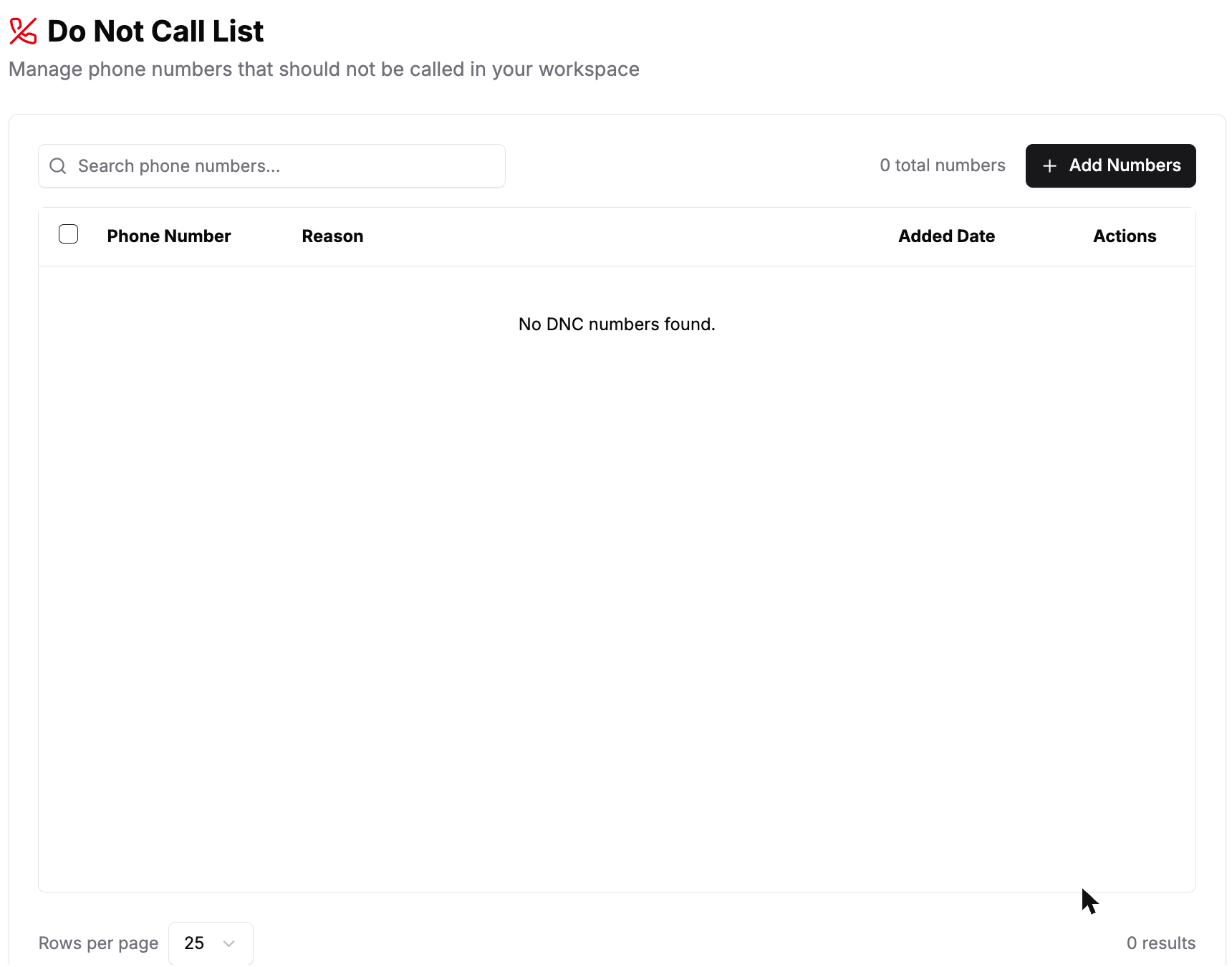
Select Do Not Call in the left menu to open the list.
How numbers are added
Numbers get onto the list in two ways:
- Automatically: if a lead says on a call launched from your workspace that they don’t want to be contacted again, ManPack AI adds their number to the list for you. You can see this in the Do Not Call field under Data Collection when you review the call (see Reviewing Calls in the Leads guide).
- Manually: you can add numbers yourself on this page, or select the shield icon in the Actions column of the leads table to add a single lead.
View the list
The table shows every blocked number:
- Phone Number: the blocked number.
- Reason: why it was added, if a reason was given.
- Added Date: when it was added.
- Actions: options for managing that number.
Type in the search box to find a number. The total count is shown next to Add Numbers.
Tip: On the Leads page, set the All numbers filter to Do Not Call only to see which leads in a list are blocked.
Paste numbers
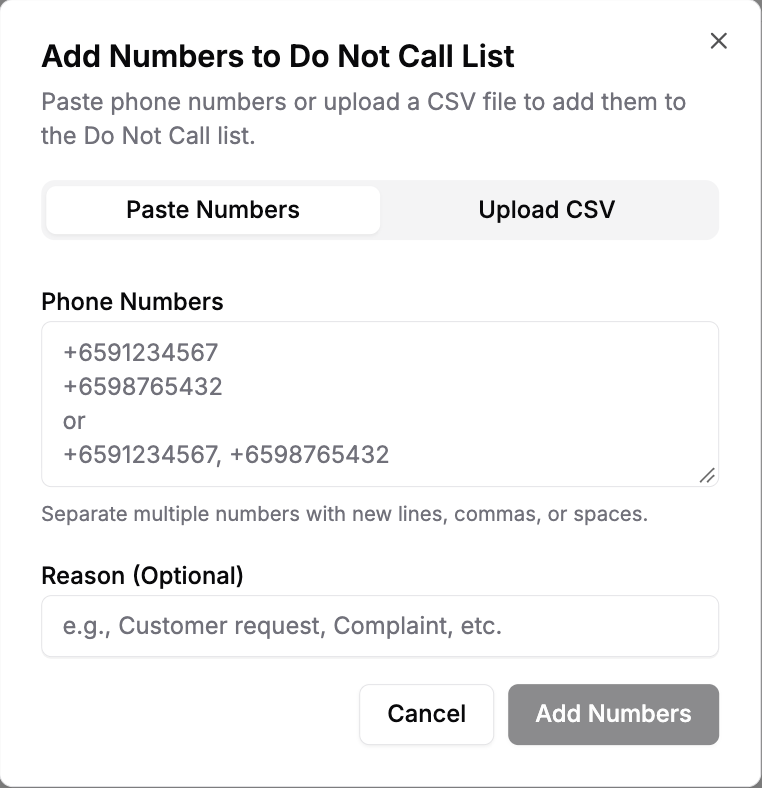
Select Add Numbers. On the Paste Numbers tab, type or paste the numbers you want to block, separated by new lines, commas or spaces. Include the country code, for example +6591234567. Add a Reason if you like, such as “Customer request” or “Complaint”, then select Add Numbers.
Upload a CSV
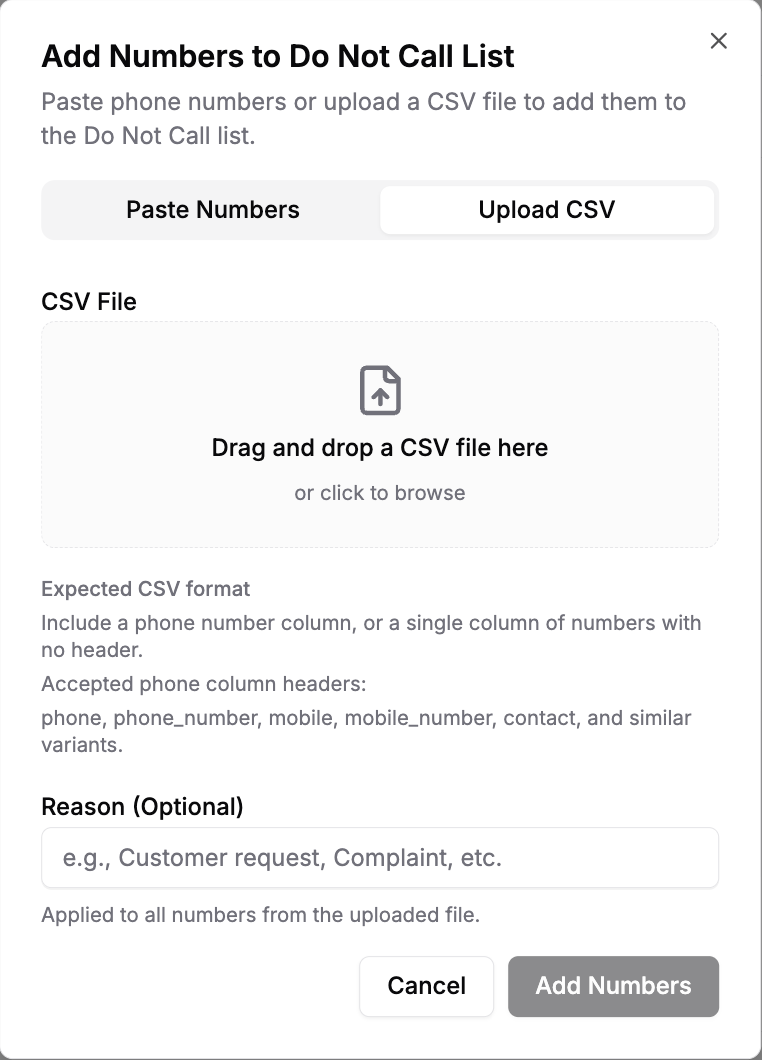
To block a long list of numbers, select the Upload CSV tab. Drag your CSV file onto the box, or click it to browse for the file.
The file needs a phone number column with a header such as phone, phone_number, mobile, mobile_number or contact, or a single column of numbers with no header. Any Reason you enter is applied to every number in the file. Select Add Numbers to finish.