
Batch Calls
Check on past batches, and reschedule or cancel upcoming ones.
Manage your batch calls
Every time you launch calls from the Leads page, they’re grouped into a batch. The Batch Calls page lists all of them, so you can check how past batches went and change or cancel ones that haven’t started yet.
Reschedule
Move a scheduled batch to a new date and time, or switch the agent that will make the calls.
Cancel
Stop a scheduled batch before it starts calling.
See who was called
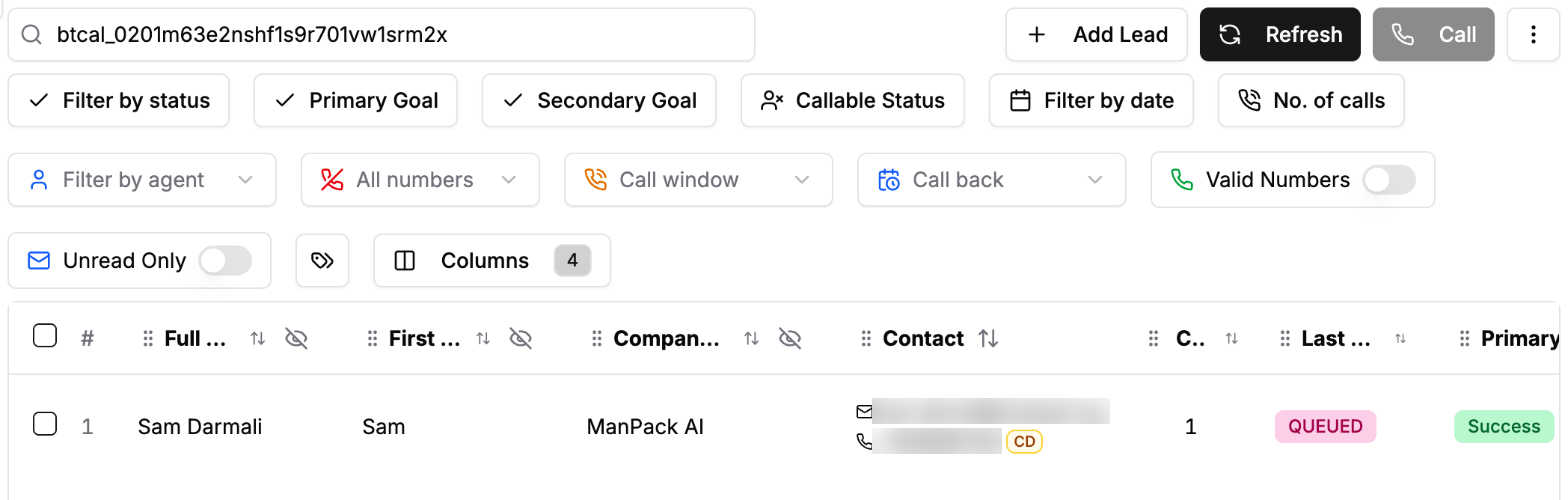
Open the leads table filtered to just the leads in a batch.
Managing batches
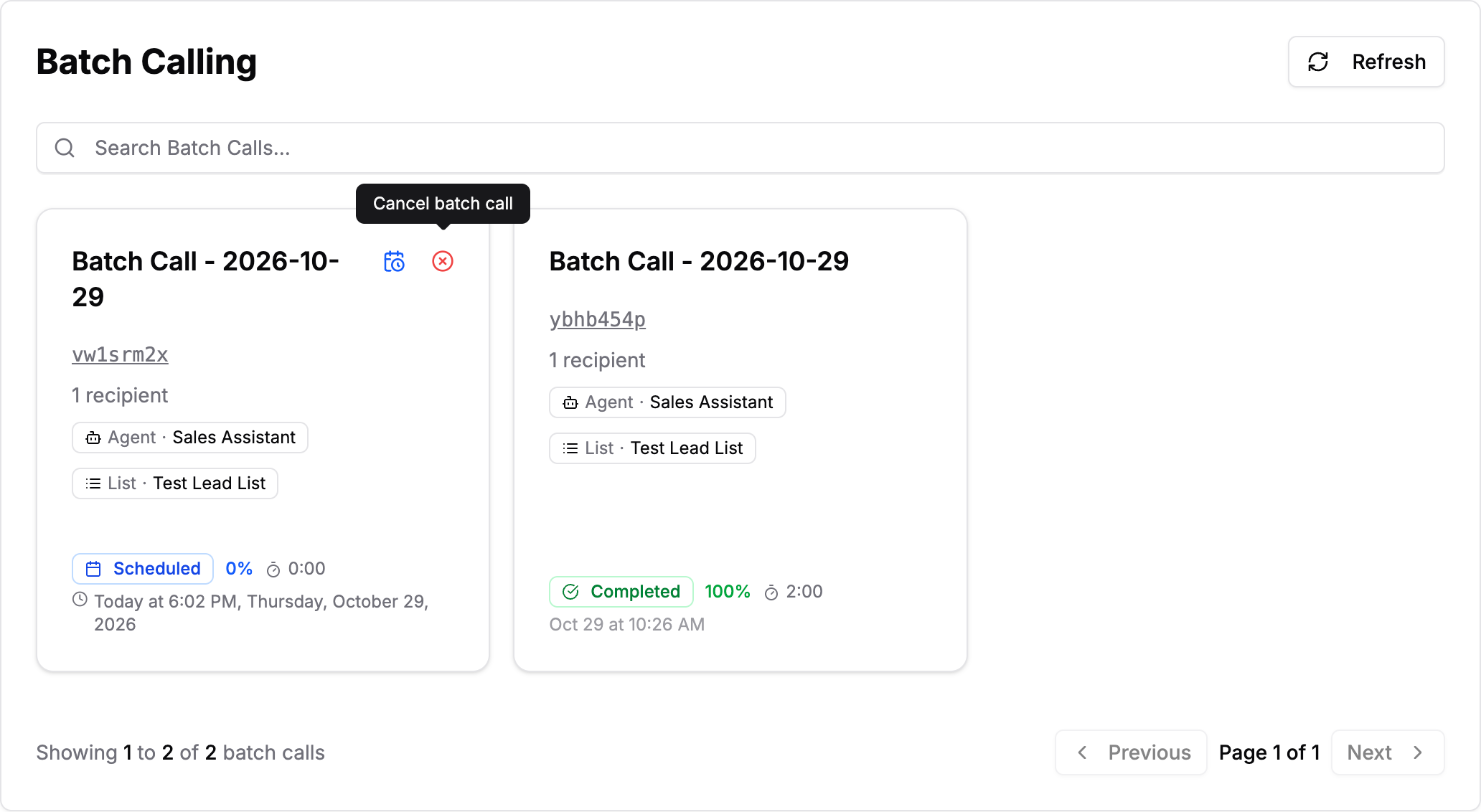
Select Batch Calls in the left menu. Use the search box to find a batch by name, select Refresh to update the progress of running batches, and use Previous and Next to move between pages.
Read a batch card
Each card is one batch. It shows:
- Name: the Call Name you gave the batch when you launched it.
- Batch ID: the underlined code below the name. Select it to see the leads in the batch.
- Recipients: how many leads are in the batch.
- Agent and List: the agent making the calls and the lead list they came from.
- Status: for example Scheduled for a batch that hasn’t started yet, or Completed once every call is done, with the percentage of calls finished and the total call time.
- Time: when a scheduled batch will start, or when a finished batch ran.
The reschedule and cancel buttons only appear on batches that are still scheduled.
Reschedule a batch
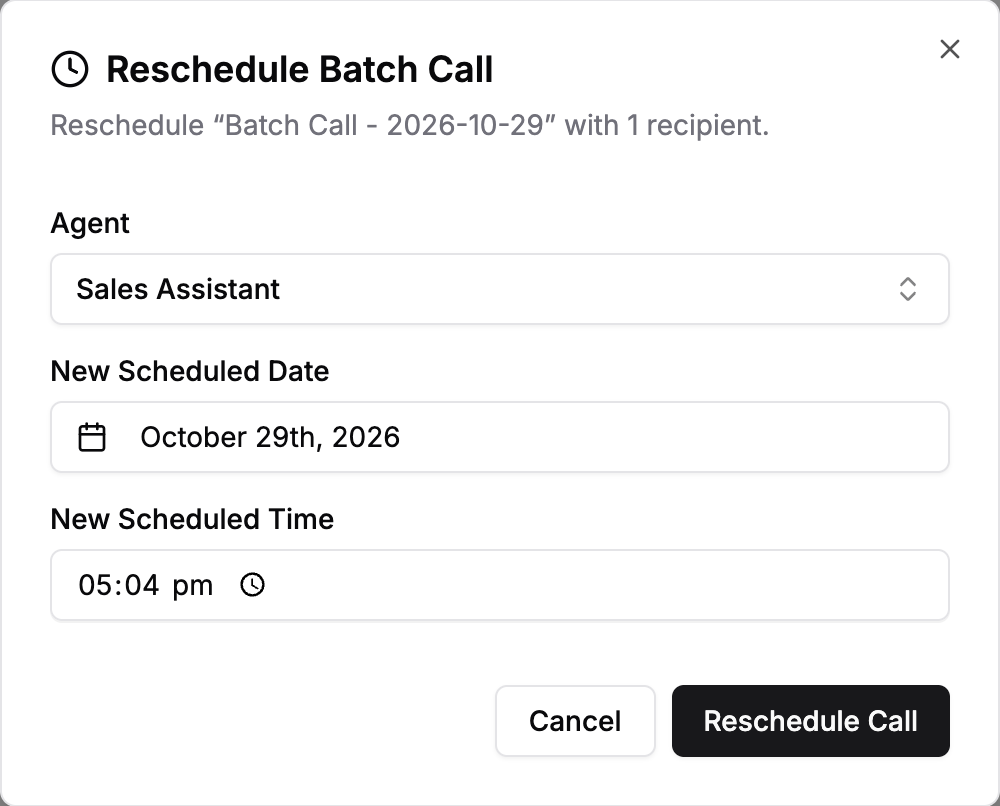
On a scheduled batch, select the blue calendar button (Reschedule batch call). In the window that opens, you can change the Agent, the New Scheduled Date and the New Scheduled Time. Select Reschedule Call to save, or Cancel to keep the original schedule.
Cancel a batch
On a scheduled batch, select the red cross button (Cancel batch call) to cancel it. None of the calls in that batch will be made.
Tip: Cancelling takes effect as soon as you select the button, so check the batch name and time first. If you only need to change when it runs, reschedule it instead.
See the leads in a batch
Select the underlined batch ID on any card. The leads table opens in a new tab with the batch ID already in the search box, so it shows only the leads in that batch. From there you can open each lead to check how their call went, as covered in Reviewing Calls in the Leads guide.