
Integrations
Privyr Integration
Connect your ManPack AI calls with your Privyr account. The integration works in two directions, and each one is set up separately.
Successful calls go to Privyr
After a successful call, that lead is added to Privyr with a short summary of the conversation.
New Privyr leads come to ManPack
When a new lead is added in Privyr, they show up in ManPack AI so you can call them.
Automatic calls per Facebook ad
ManPack AI can call them automatically, and use a different agent for each Facebook ad.
ManPack AI → Privyr
After a successful call from ManPack AI, add that lead to Privyr.
How it works
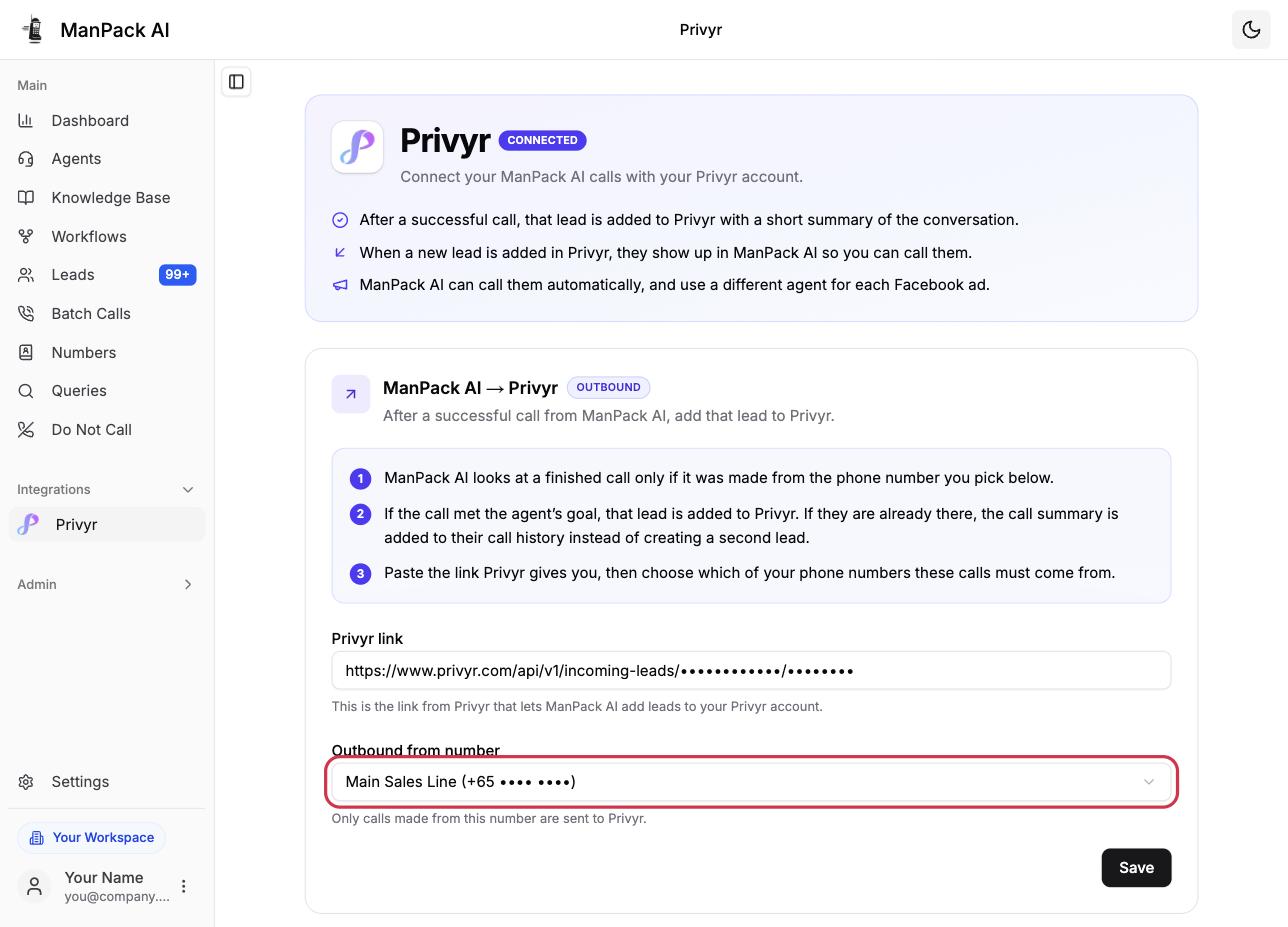
- ManPack AI looks at a finished call only if it was made from the phone number you pick below.
- If the call met the agent’s goal, that lead is added to Privyr. If they are already there, the call summary is added to their call history instead of creating a second lead.
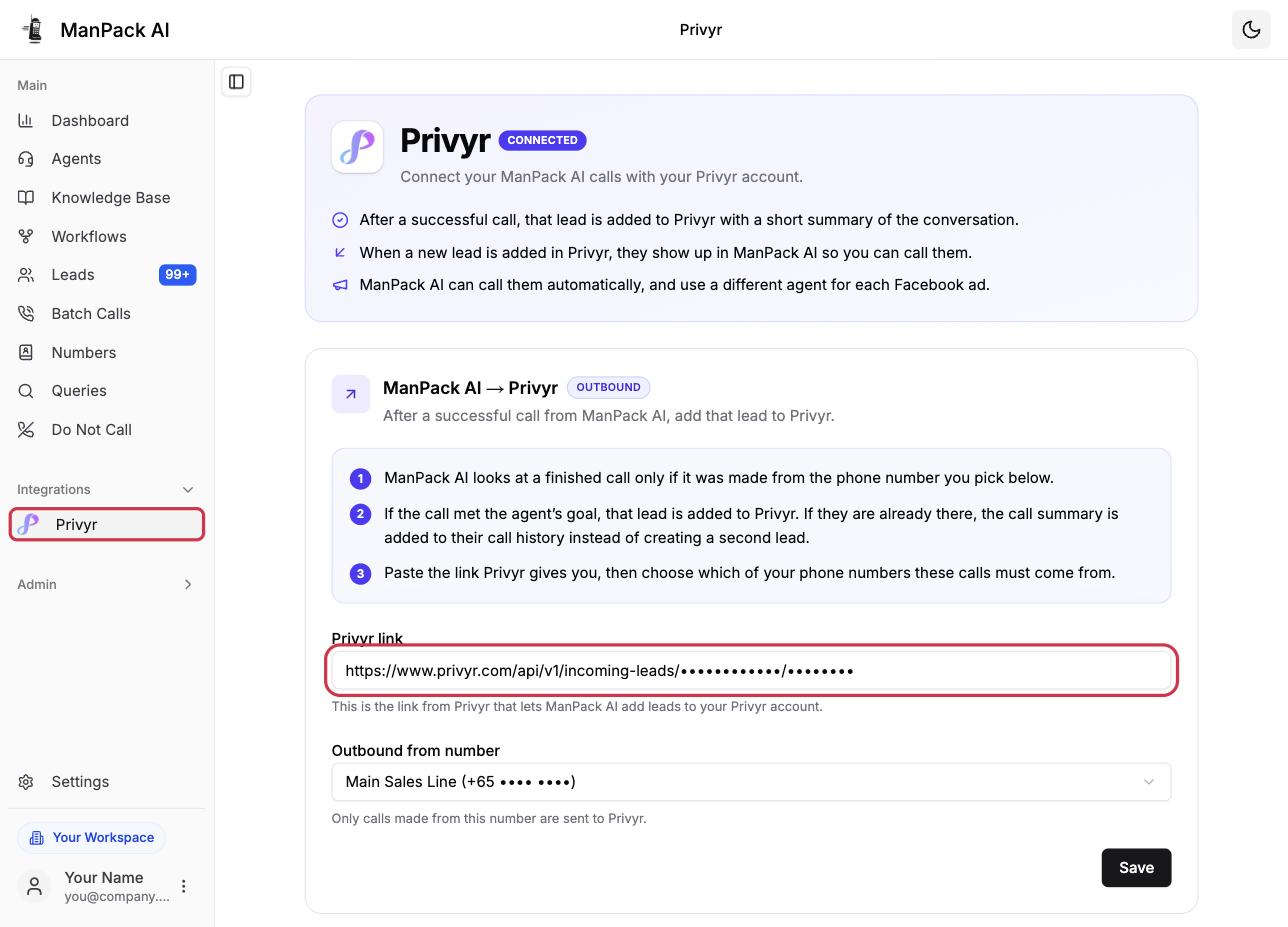
- Paste the link Privyr gives you, then choose which of your phone numbers these calls must come from.
Step 1: Log in to Privyr
Go to privyr.com and click Login in the top-right corner. Sign in to the Privyr account you want your leads sent to.

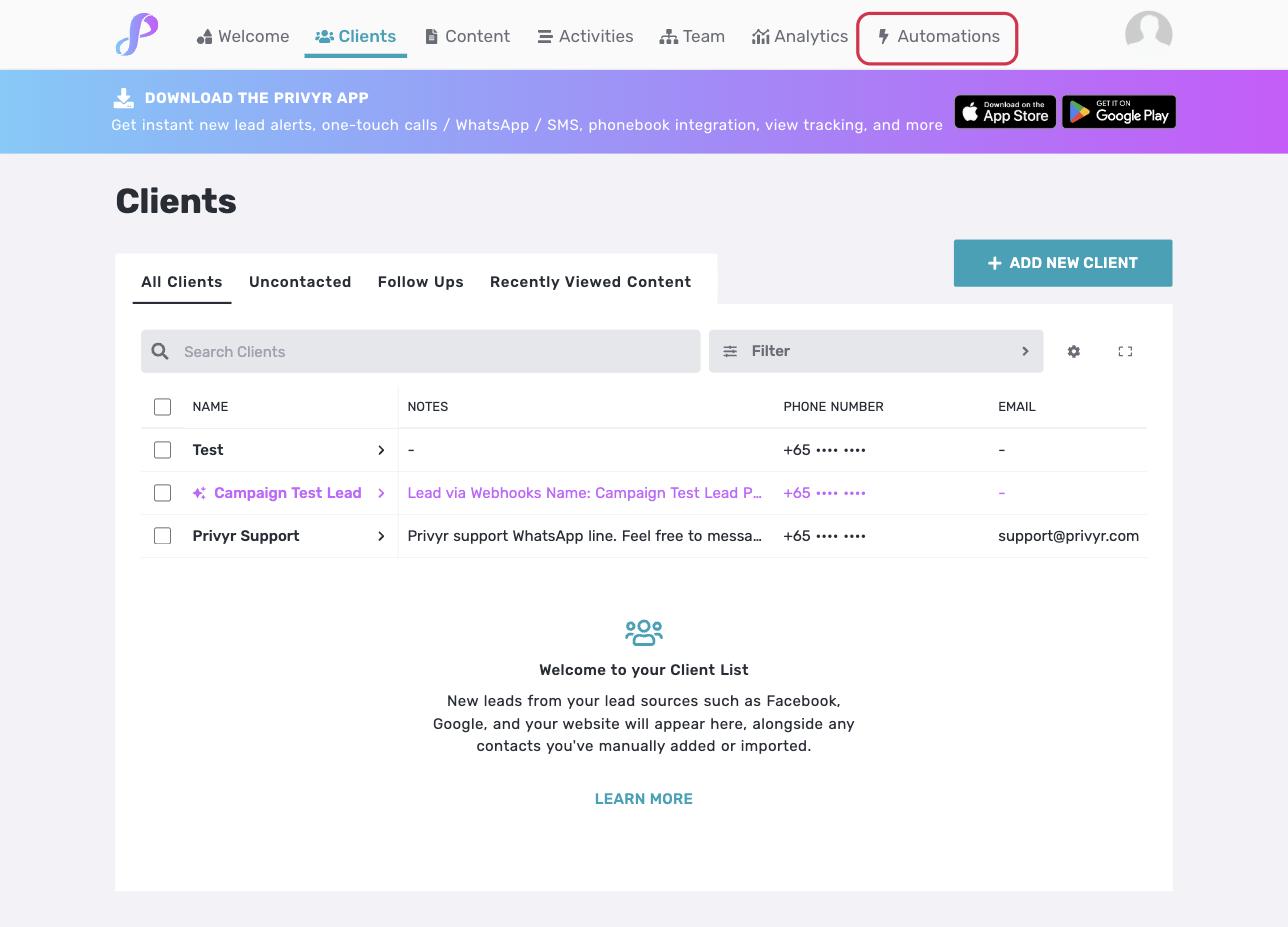
Step 2: Click on Automations
Once you’re signed in, click Automations in the top navigation bar.
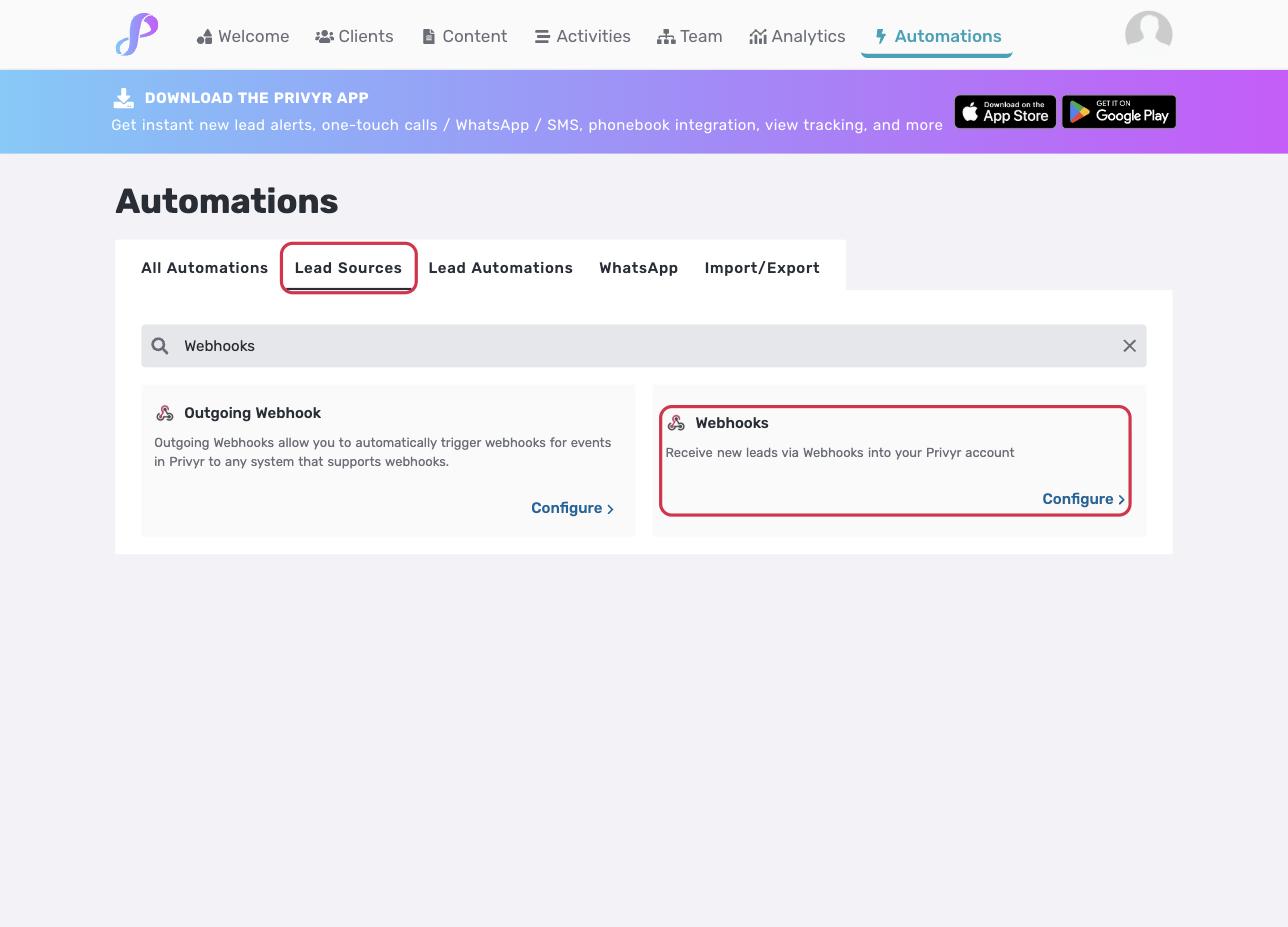
Step 3: Under Lead Sources, click on Webhooks
Open the Lead Sources tab, find Webhooks and click Configure. Tip: type “Webhooks” in the search bar to find it quickly. Make sure you pick Webhooks, not Outgoing Webhook.
Step 4: Copy the Privyr Webhook URL into ManPack AI
On the Incoming Webhook page, click Copy next to the Privyr Webhook URL.
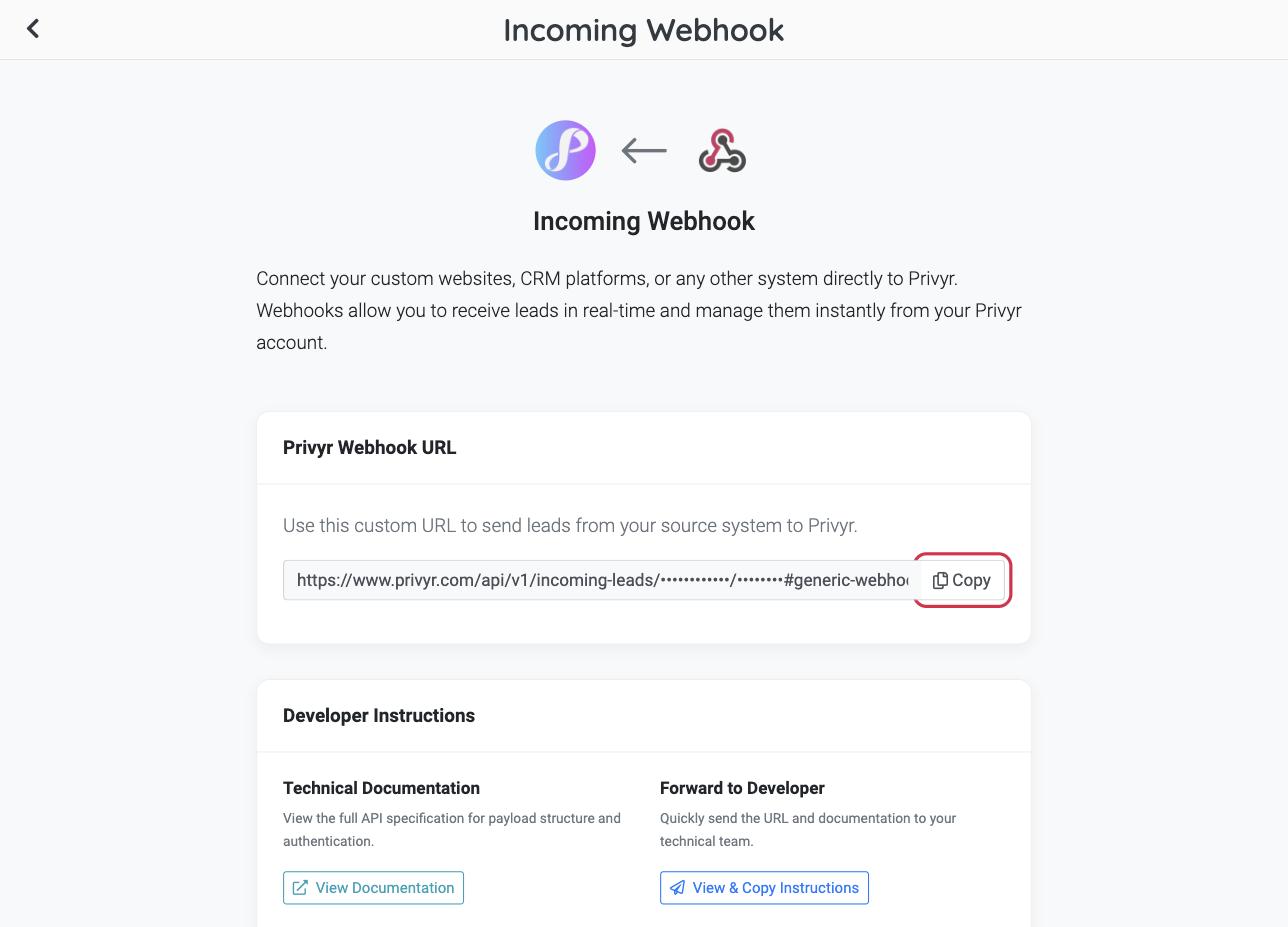
Then in the ManPack AI platform, go to Integrations → Privyr in the left sidebar and paste the URL into the Privyr link field. Keep this link private: anyone with it can add leads to your Privyr account.
Step 5: Choose your outbound number and save
Under Outbound from number, pick the phone number your ManPack AI calls go out from, then click Save. Only calls made from this number are sent to Privyr.
Privyr → ManPack AI
When a new lead is added in Privyr, they show up in ManPack AI so you can call them, automatically if you like.
How it works
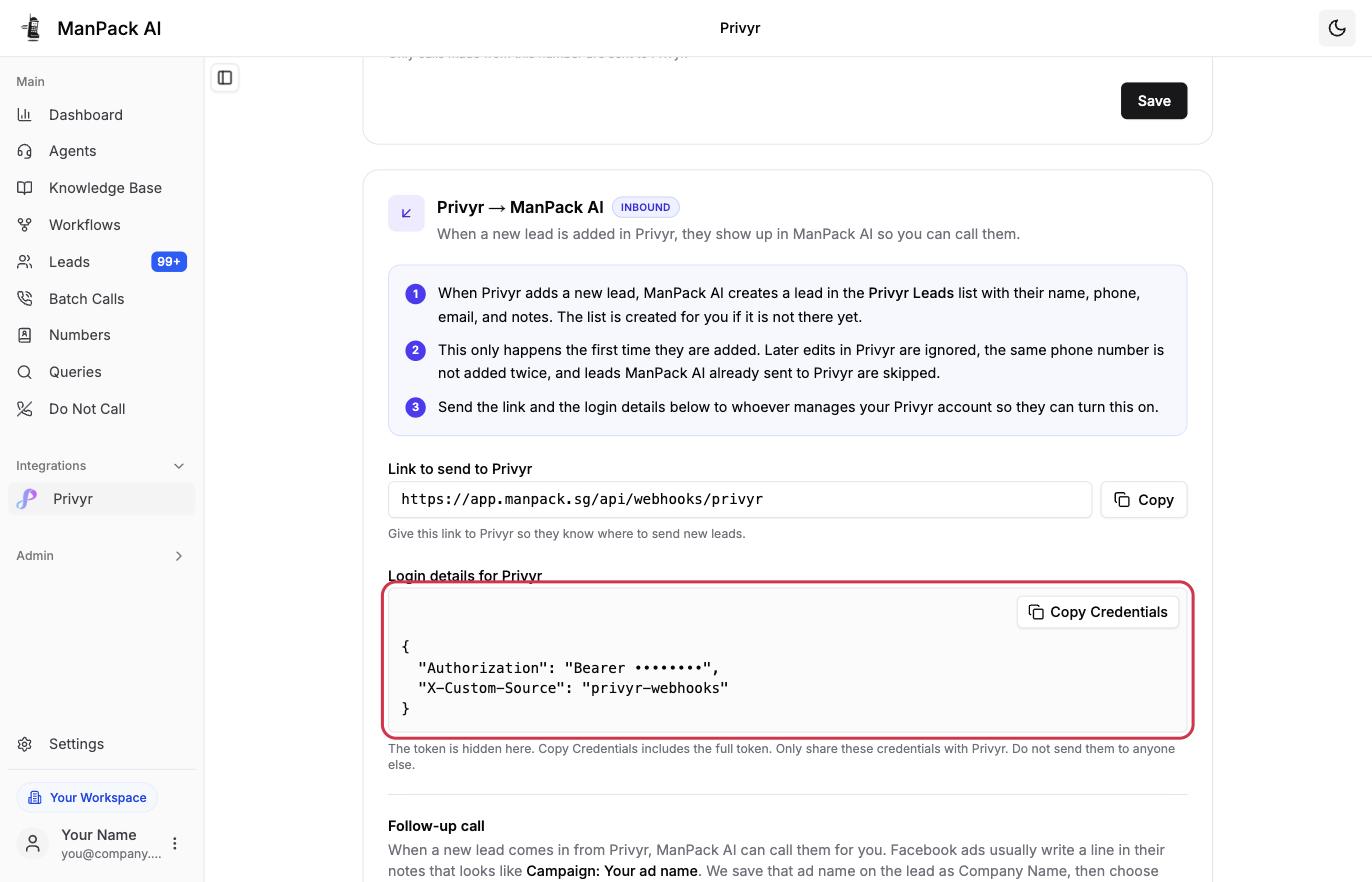
- When Privyr adds a new lead, ManPack AI creates a lead in the Privyr Leads list with their name, phone, email and notes. The list is created for you if it is not there yet.
- This only happens the first time they are added. Later edits in Privyr are ignored, the same phone number is not added twice, and leads ManPack AI already sent to Privyr are skipped.
- You send the link and the login details from ManPack AI to whoever manages your Privyr account so they can turn this on.
Step 1: Make sure you are on Privyr Ultimate
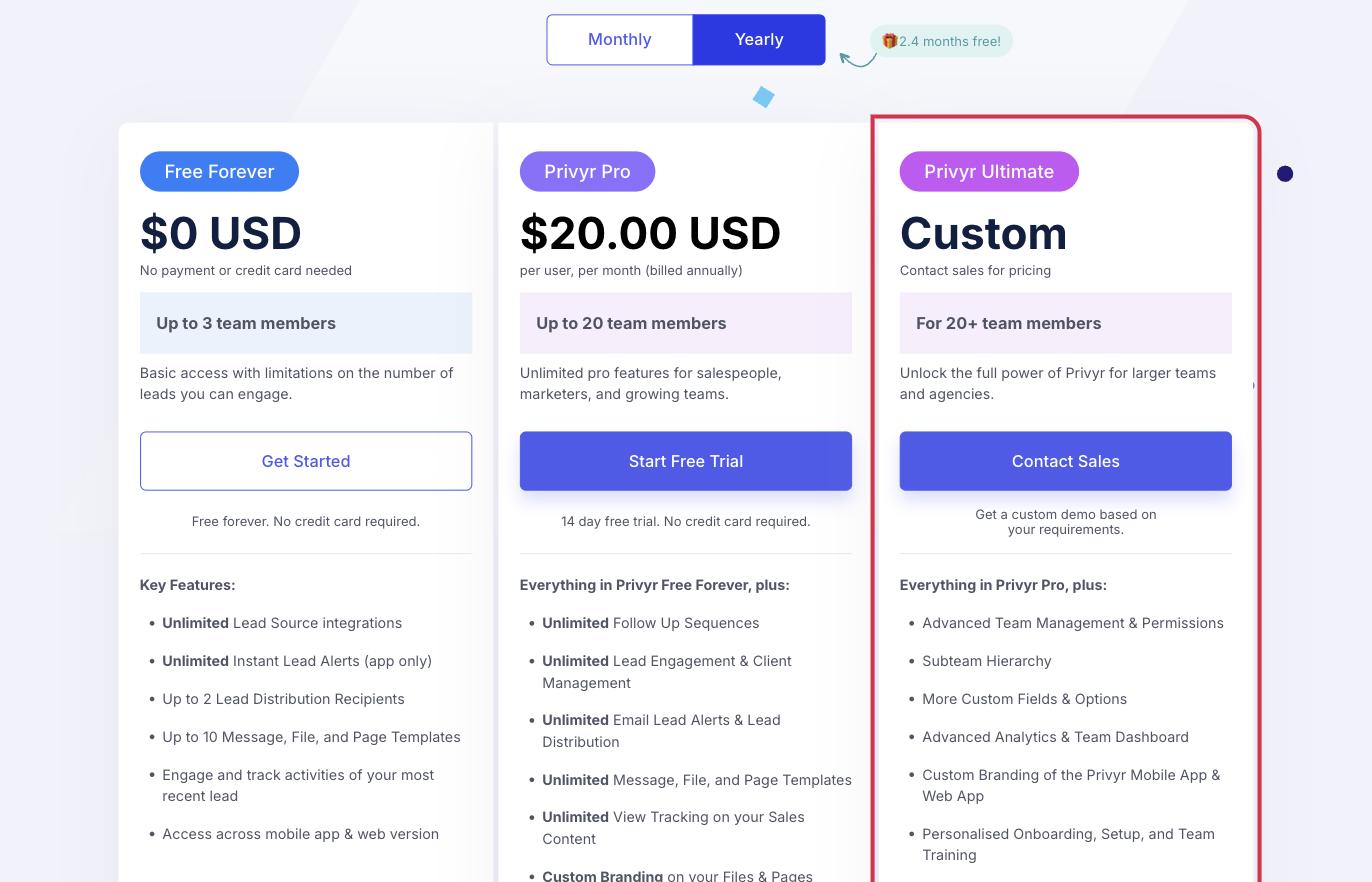
This flow is only available on the Privyr Ultimate plan. Ultimate has custom pricing, so contact Privyr’s sales team from their pricing page to upgrade.
Step 2: Send Privyr the ManPack AI webhook link
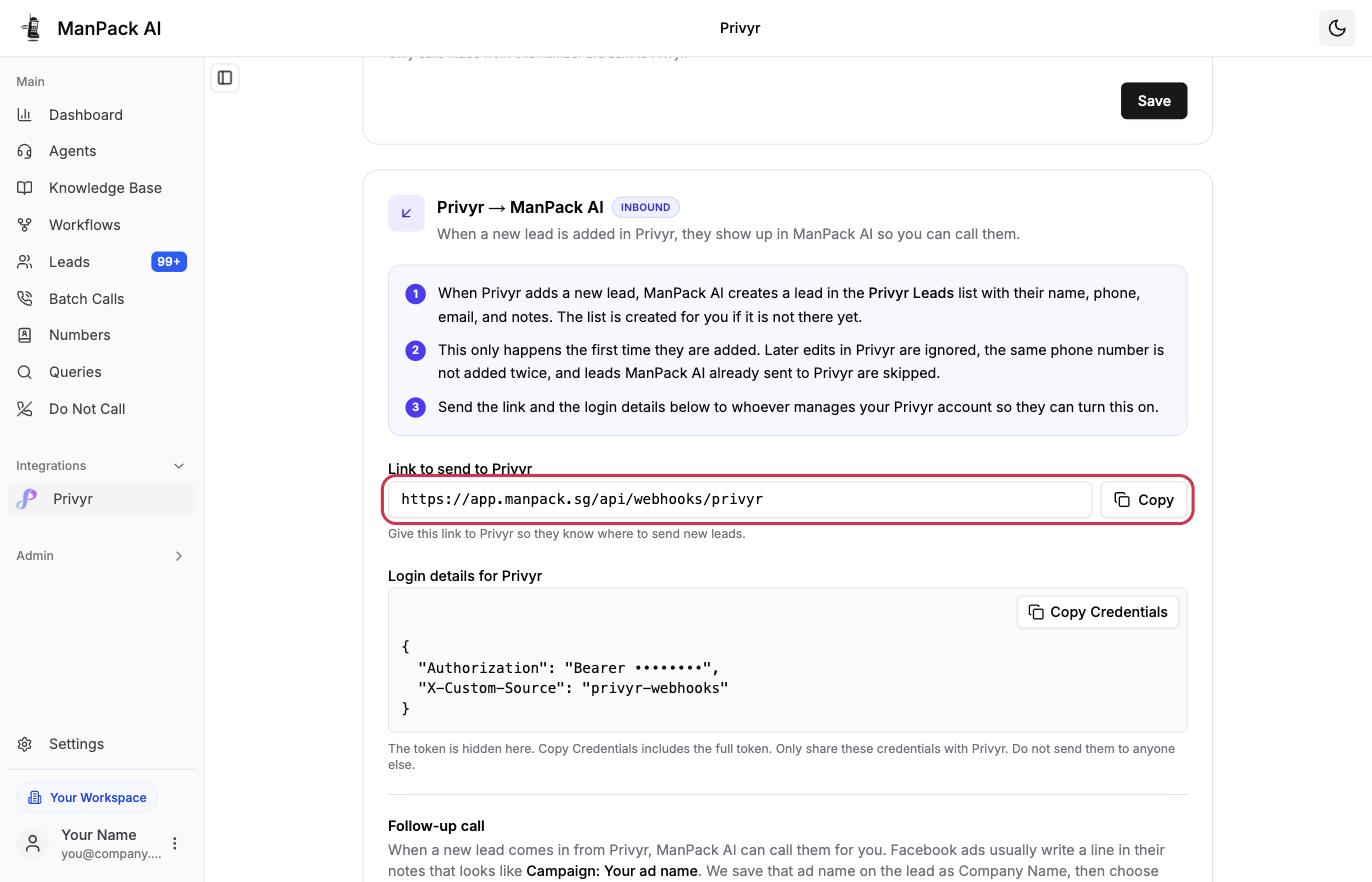
In ManPack AI, go to Integrations → Privyr and scroll to Privyr → ManPack AI. Click Copy next to Link to send to Privyr and send it to your Privyr account manager. Our customer success team can help you set this up.
Step 3: Send Privyr your authorization credentials
Under Login details for Privyr, click Copy Credentials and send them to Privyr along with the link. The token is hidden on screen, but Copy Credentials includes the full token. Only share these credentials with Privyr. Again, our team is happy to help with this step.
Step 4: Privyr connects your account
Once Privyr has configured their side with the ManPack AI webhook link and your credentials, every new lead created in Privyr is synced to ManPack AI automatically and appears in your Privyr Leads list.
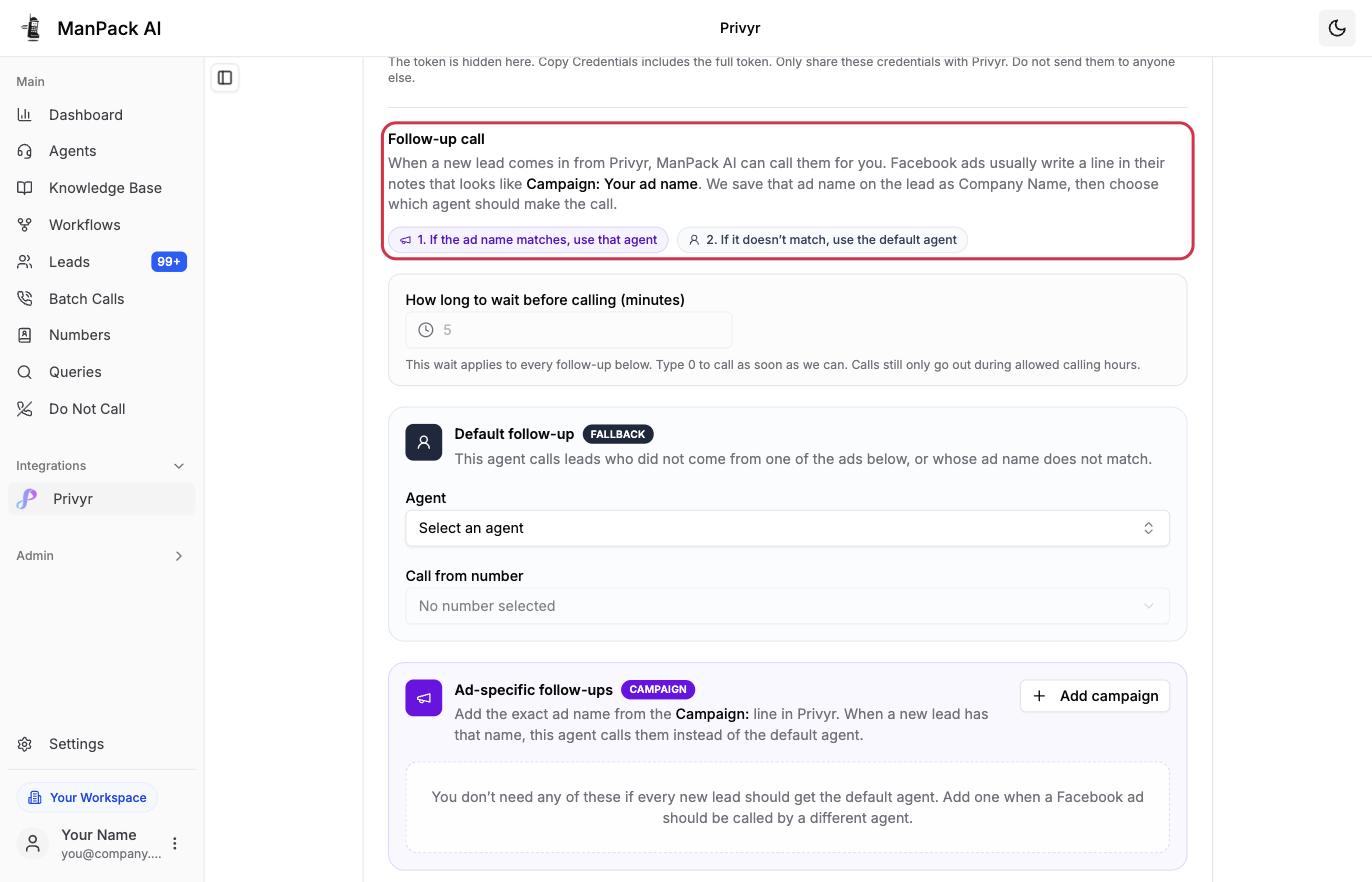
Step 5: Set up an automatic follow-up call
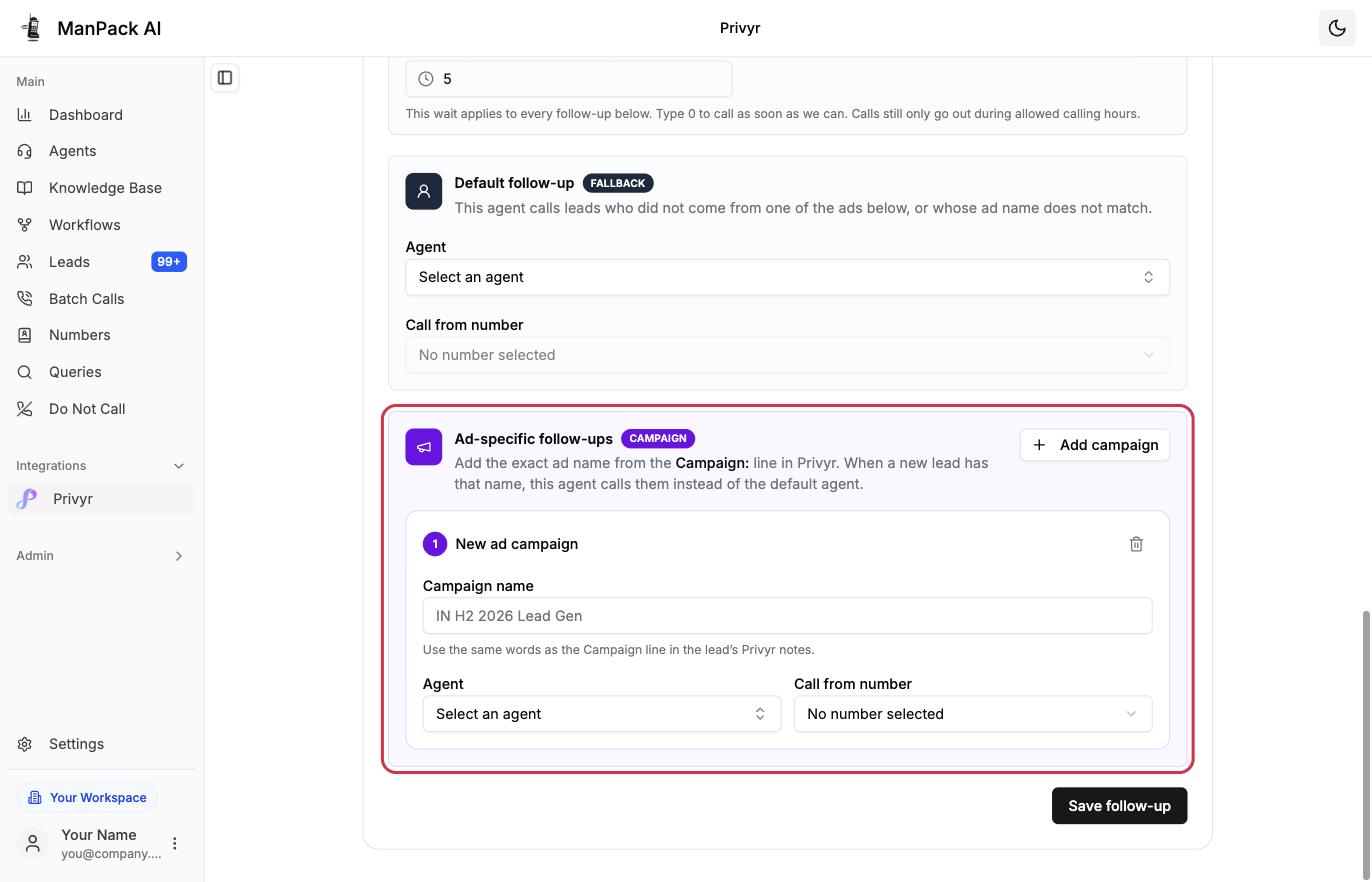
For further automation, ManPack AI can call each new lead right after it syncs, so high-intent leads are followed up on immediately. Facebook ad leads usually include a line in their Privyr notes like Campaign: Your ad name. ManPack AI saves that ad name on the lead and uses it to choose which agent makes the call.
Step 6: Choose a default agent and wait time
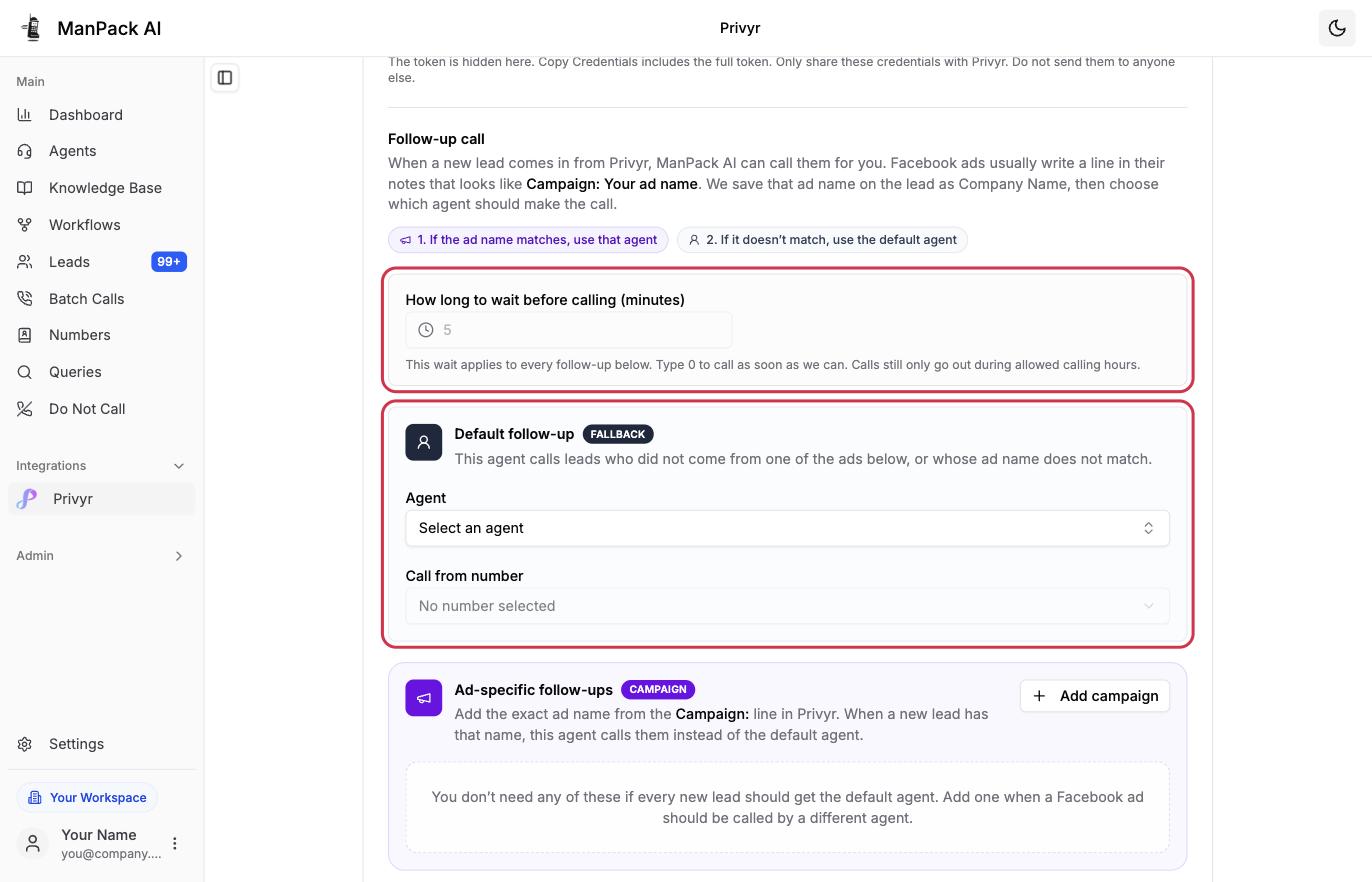
Set How long to wait before calling in minutes. Type 0 to call as soon as possible; calls still only go out during allowed calling hours. Then, under Default follow-up, pick the Agent and the Call from number. This agent calls every lead that doesn’t match one of your ad-specific follow-ups. Click Save follow-up.
Step 7: Use a different agent for each ad (optional)
Under Ad-specific follow-ups, click Add campaign. Enter the campaign name, then choose the agent and number that should call leads from that ad. Click Save follow-up.
Important: the campaign name must exactly match the Campaign: line in the lead’s Privyr notes, or the default agent will make the call instead.