Getting Started
Create your account and sign in
Every ManPack AI workspace starts the same way: no password to create or remember, just a one-time link sent to your email. Follow the four steps below to go from the homepage to your dashboard.
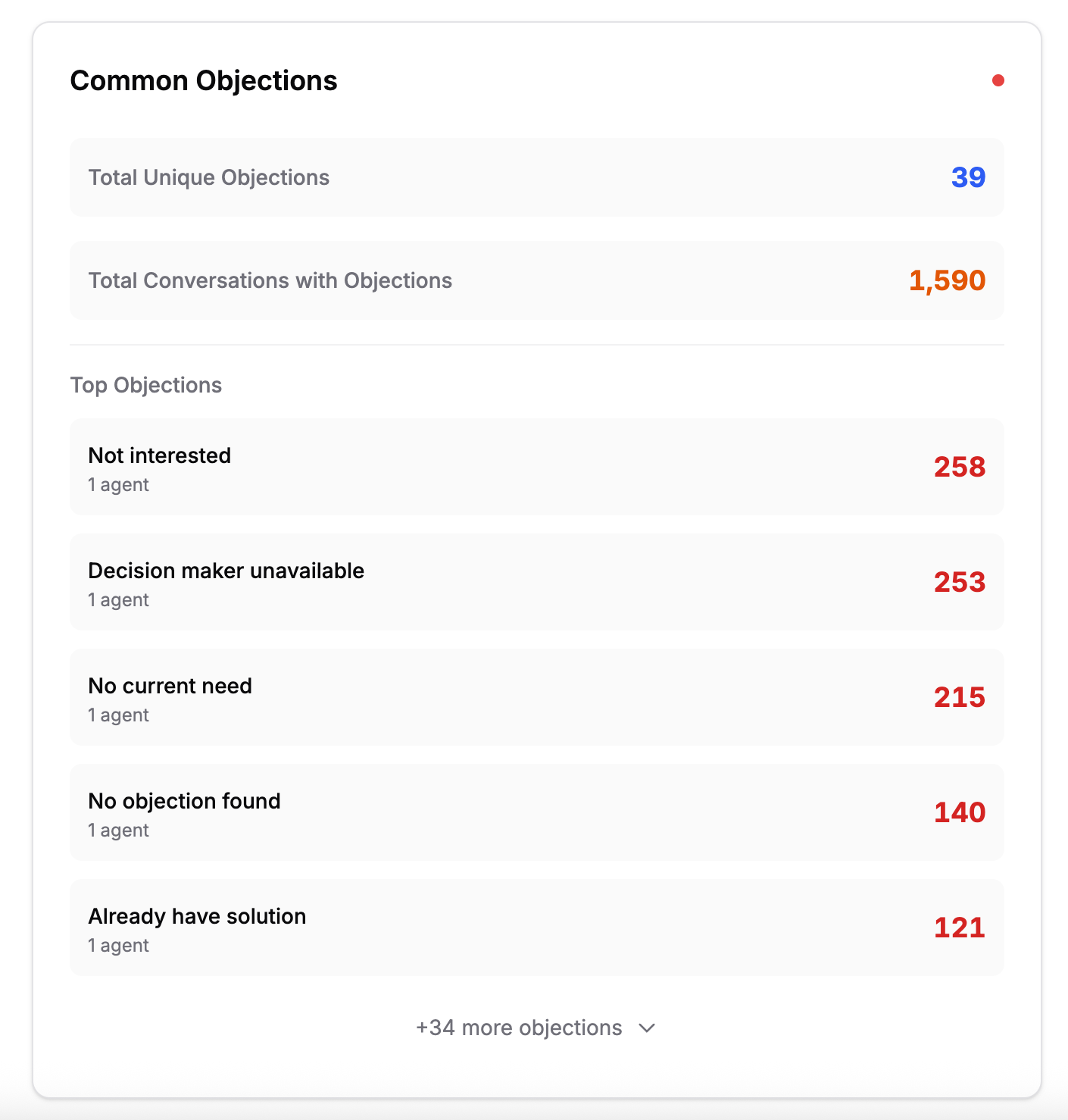
Open Get Started on the homepage
Head to manpack.sg. The homepage explains what ManPack AI does — qualify leads, schedule meetings and hold natural voice conversations — with Get Started front and centre. Select it to move on to sign-in.
Sign in with your email
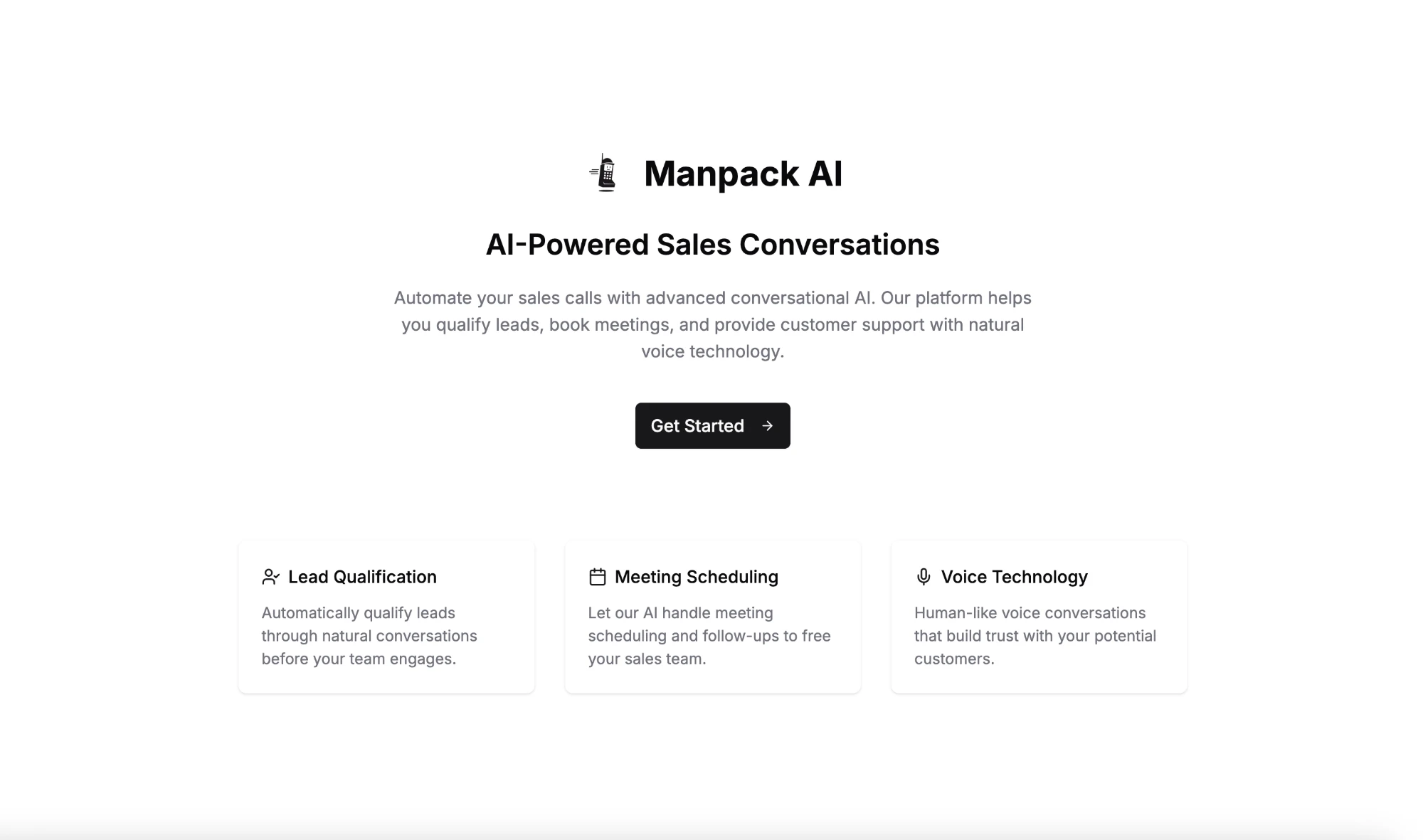
ManPack AI doesn't use passwords. On the Sign In screen, enter the email address your workspace was set up with and select Send Magic Link. A one-time sign-in link is emailed to that address within a few seconds.
Signing in for the first time? Use New to ManPack AI? at the bottom of the card to start a new workspace instead.
Open the magic-link email
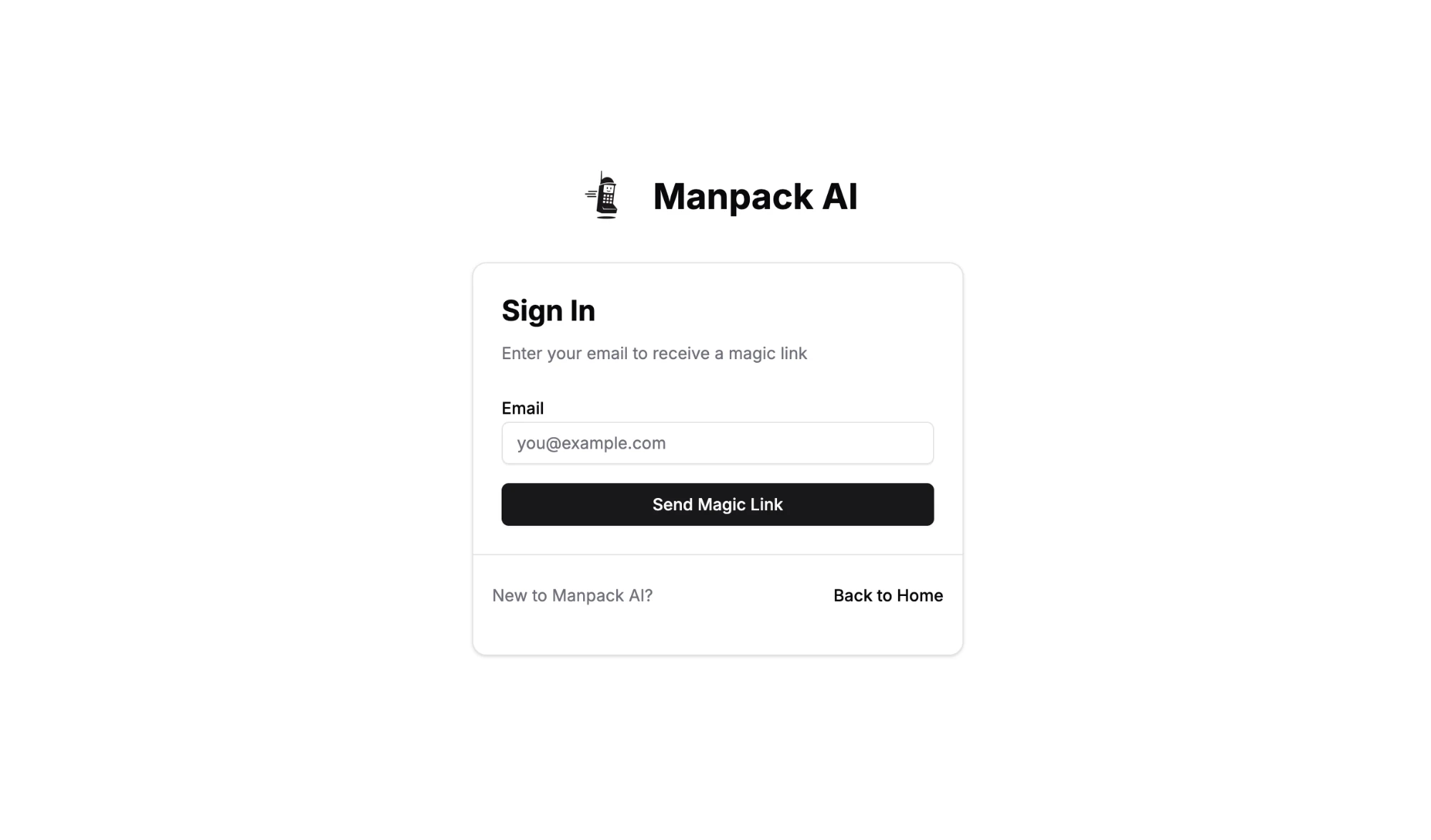
Check the inbox for the address you just entered. The email arrives from manpack.sg with the subject "Sign in to start making AI calls now!" — select Sign In with Magic Link to continue.
Confirm sign-in and enter the platform
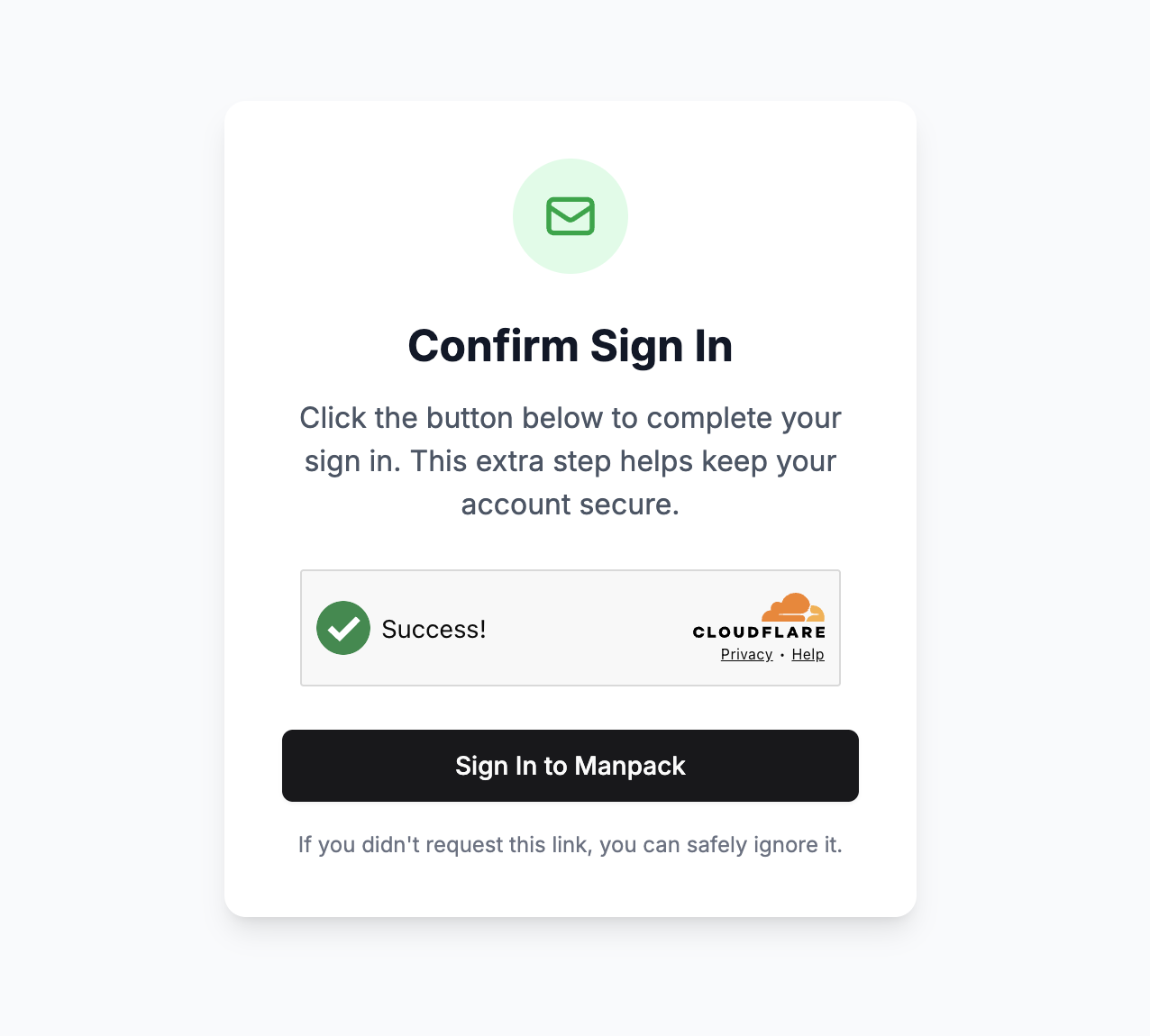
The link opens a quick, automatic security check — nothing to solve — followed by a Confirm Sign In screen. Once it shows Success, select Sign In to Manpack to land in your dashboard, ready to upload leads and launch calls.
Dashboard
Understand your calling performance
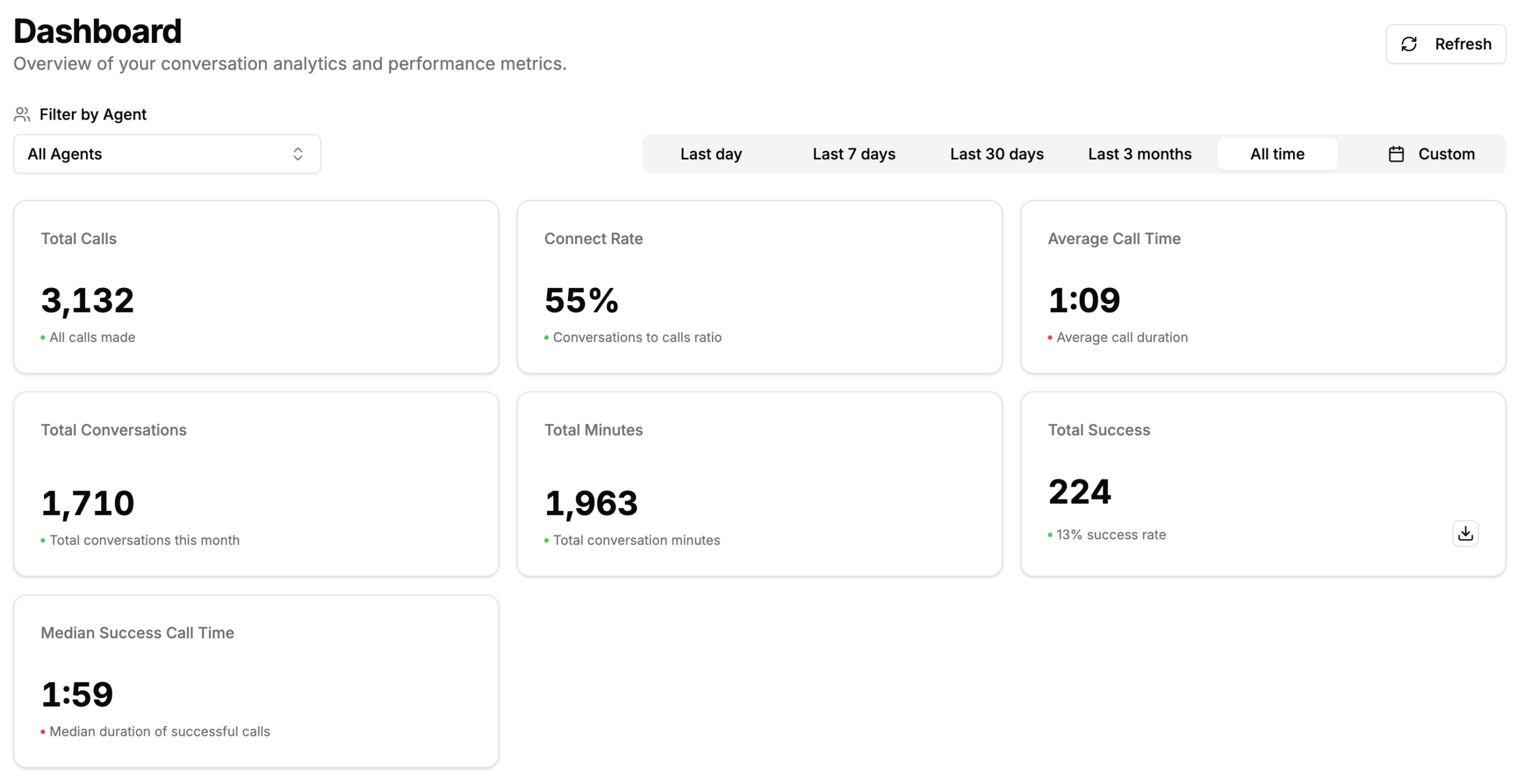
Once you're signed in, the Dashboard is your home screen — a real-time read on call volume, connection quality and the objections your leads are raising, filterable by agent and date range.
Key metrics at a glance
Seven cards summarise the selected period. Use Filter by Agent and the date range presets — Last day, Last 7 days, Last 30 days, Last 3 months, All time or a Custom range — to narrow the view, then Refresh to pull the latest numbers.
In the example below, 3,132 total calls produced a 55% connect rate and 224 successes — a 13% success rate.
Daily activity chart
Below the metric cards, the Daily Activity Overview chart plots Calls, Conversations and Successes per day. Untick a series under Show: to hide it, or hover any point to see that day's connect rate, success rate and minutes used.
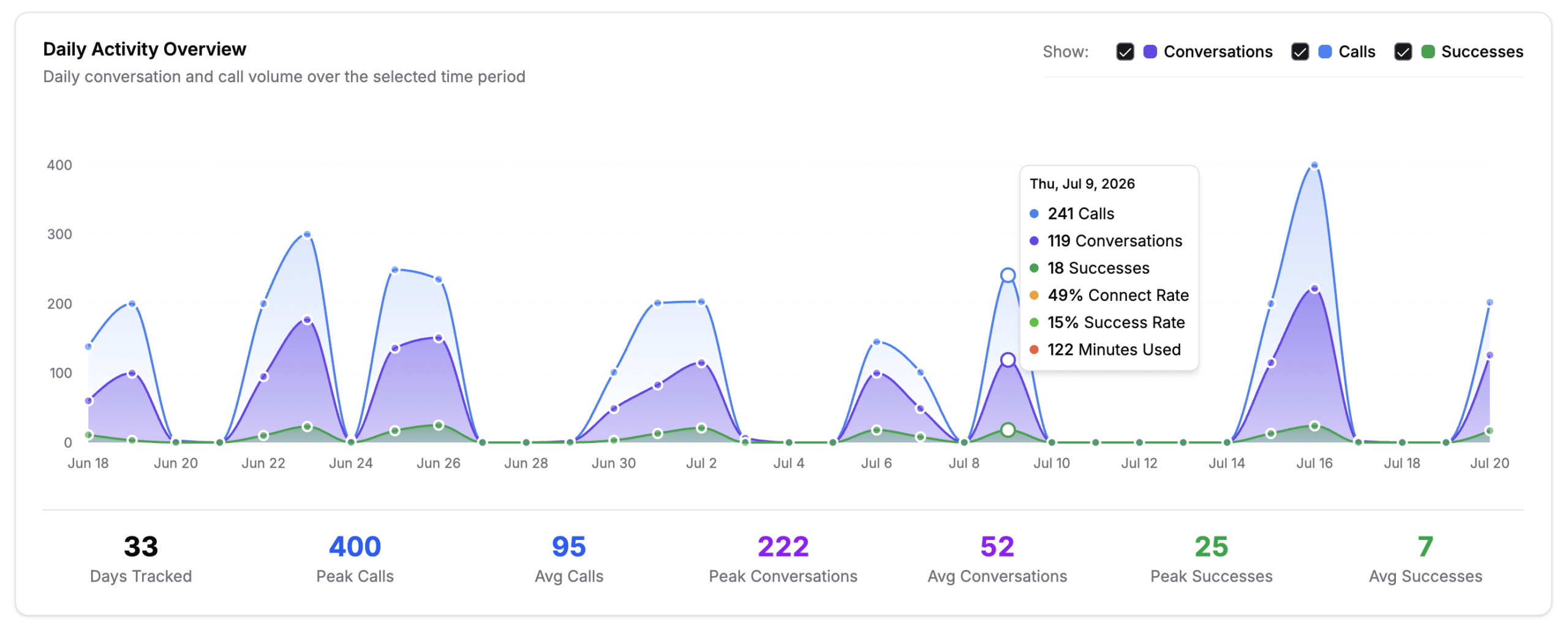
The row beneath the chart — Days Tracked, Peak Calls, Avg Calls, Peak Conversations, Avg Conversations, Peak Successes, Avg Successes — summarises the whole selected range, not just the day you're hovering.
Common objections
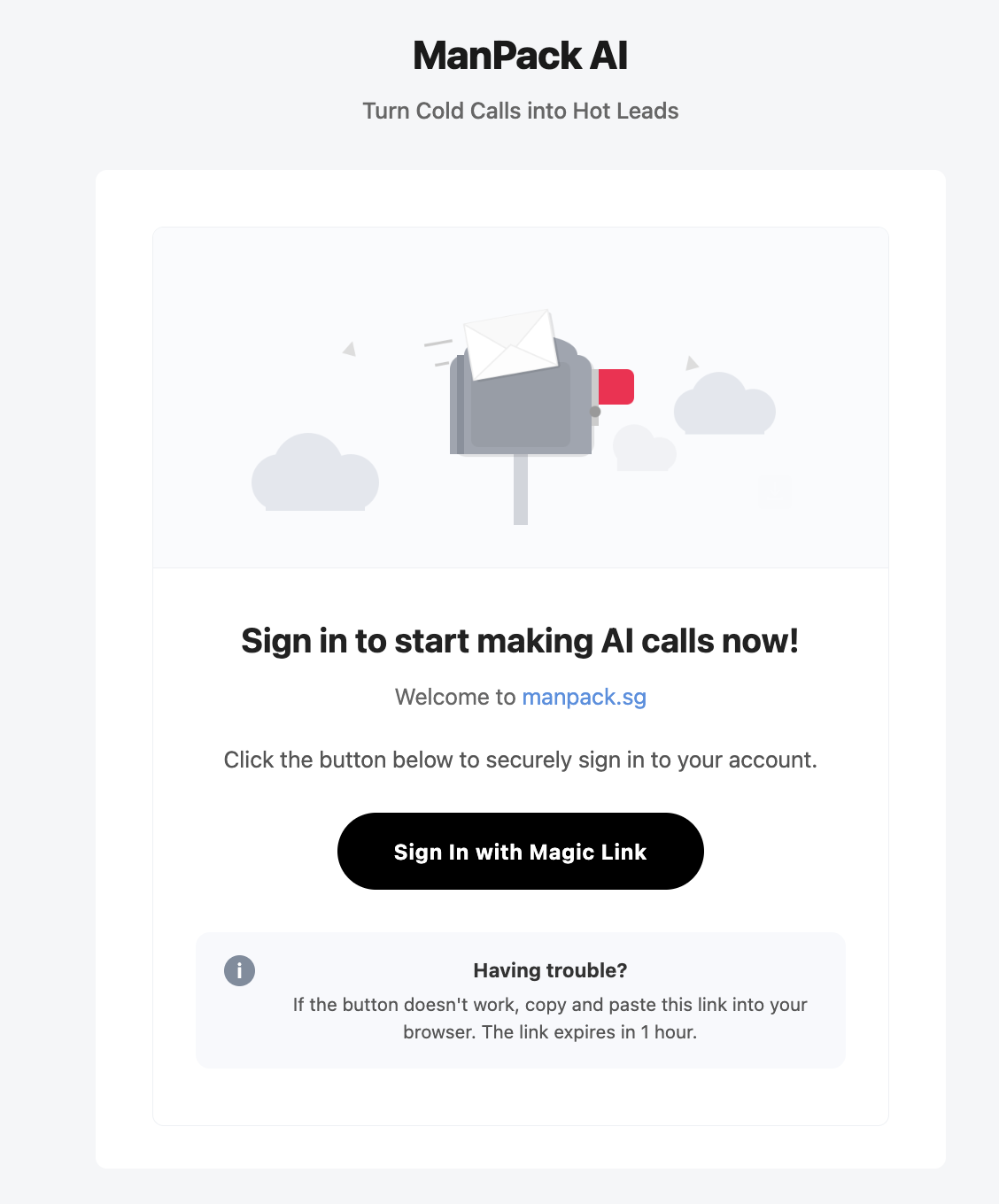
ManPack AI listens to every conversation and tags the objection your lead raised, then rolls them up here. Total Unique Objections counts the distinct reasons logged; Total Conversations with Objections counts how many calls hit one. The Top Objections list ranks them by frequency, with +34 more objections expandable for the long tail.